Parametric EQ.
Parametric EQ lets you choose which frequency to adjust, how much to raise or lower it, and how broad the adjustment should be. Use it for small changes to taste or a headphone correction profile.
Included in PGGB
Alongside upsampling, PGGB includes EQ to adjust tonal balance, crossfeed for headphones and Remote to control Live playback and Offline processing. All three are optional.

Features / 01
Adjust bass, midrange or any other frequency band.
Equalization changes the balance of bass, midrange and treble. You can add warmth to lean-sounding headphones, reduce excessive brightness or tame a bass peak caused by your speakers and room.
Make a broad, gentle adjustment or target a narrow frequency range without turning down the whole track. PGGB supports parametric and convolution EQ in Offline and Live, including correction profiles you already use.
If a familiar voice sounds thin or bass overwhelms the music, PGGB-EQ lets you adjust the balance while keeping the sound clear and natural.

Parametric EQ lets you choose which frequency to adjust, how much to raise or lower it, and how broad the adjustment should be. Use it for small changes to taste or a headphone correction profile.
Convolution EQ uses a prepared filter that can contain multiple adjustments. Supply a filter made for your headphones or measured for your speakers and room, and PGGB applies it during processing.
Features / 02
Crossfeed lets each ear hear a little of both channels.
With speakers, sound from each speaker reaches both ears. Headphones usually keep the left and right channels separate. Crossfeed mixes a small, delayed and filtered amount of the opposite channel into each ear.
PGGB-ARC models some of this interaction, including the time sound takes to travel around your head and how it changes on the way. It can make the channels feel more connected while preserving stereo space.
In an older stereo recording, the singer may be entirely in one ear and the instruments in the other. Crossfeed can soften that separation and make the performance sound more cohesive.

A small amount softens hard left/right separation. Increasing it sends more of the opposite channel to each ear. The aim is comfortable stereo listening, rather than a mono blend.
Your head and shoulder dimensions affect how sound reaches your ears. ARC can use personal measurements to refine its crossfeed model, and its virtual speaker angle changes the listening perspective.
Optional Room reflections add the early echoes and fading reverberation associated with listening in a room. This is separate from crossfeed and is available for Offline processing. Crossfeed itself works in both Offline and Live.
Features / 03
Control Live playback and Offline processing from your phone or tablet.
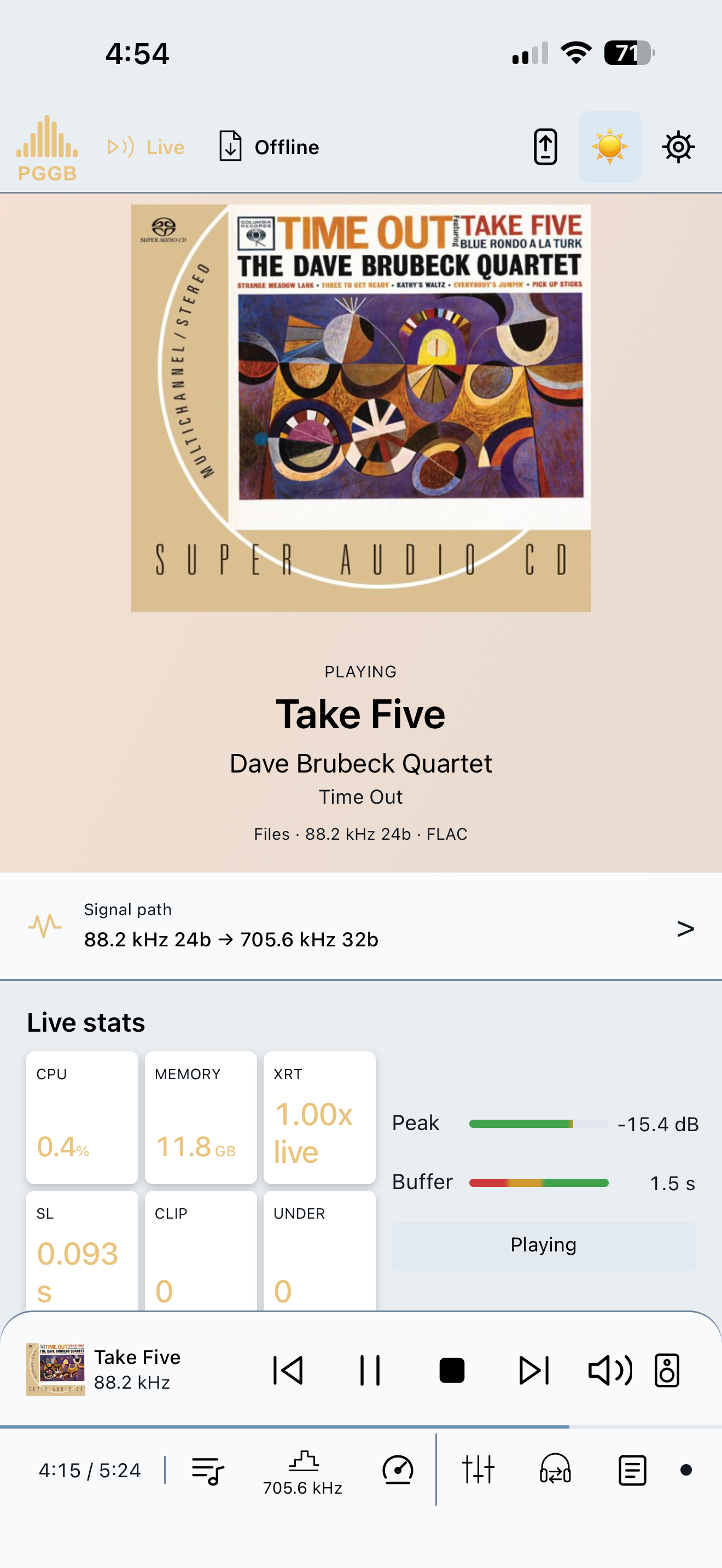
Open PGGB-Remote in a browser on the same home network as your PGGB computer. In Live mode, see what is playing, choose the next track, manage the queue and control playback from your listening seat.
In Offline mode, choose the input folders and output location on the PGGB computer, then start, pause or stop processing and follow its progress. Stop playback or processing before switching modes.
A phone keeps the controls close at hand. On a tablet or wider browser window, playback and settings sit side by side, giving you more room to see both.
The PGGB computer processes the audio and sends it to your DAC. Remote controls playback and processing; it does not carry the audio.
Mini player
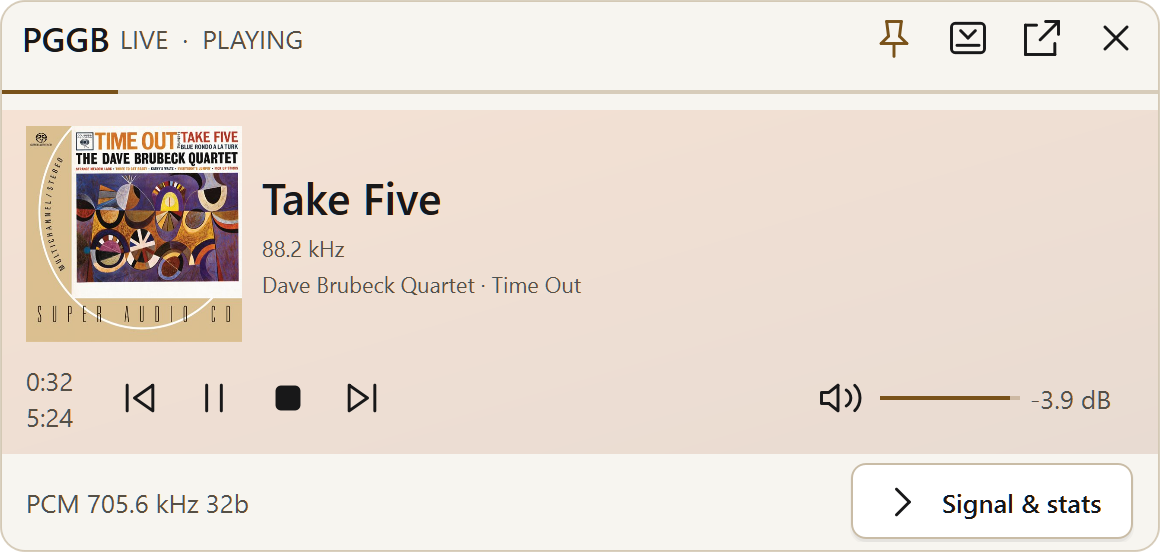
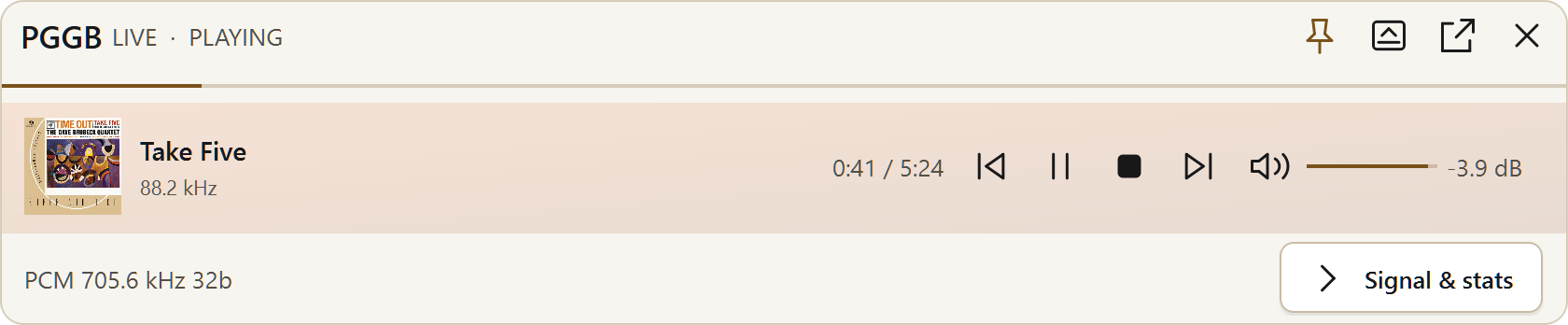
Listening while you work? Keep your music controls nearby in a smaller PGGB window.
Click the mini-mode button beside Remote in the app header. Use the layout button at the top of the mini window to switch between Card and Strip.
Card gives the album artwork more room, with track details alongside it and playback controls underneath. Strip arranges the artwork, track and controls in a shallow horizontal window that fits along the edge of your screen. Both control the same playback.
Use the pin to keep the player above other windows. Open Signal & stats when you want to check the signal path or processing information, then collapse it to keep the player small.
Return to the full window for the rest of PGGB’s controls. PGGB always starts in the full window.
Built-in Help
Unsure what a setting does? Open its help while you are using the app.
Click the question-mark icon beside Settings to browse Contents, Index and Search. The pages are installed with PGGB, so they are available without an internet connection.
On Windows, press F1 with a control focused, or Shift+F1 then click it, to open its help. Use Show me in a topic to locate a control; if it is unavailable, PGGB explains why without changing your settings.
Using built-in Help ↗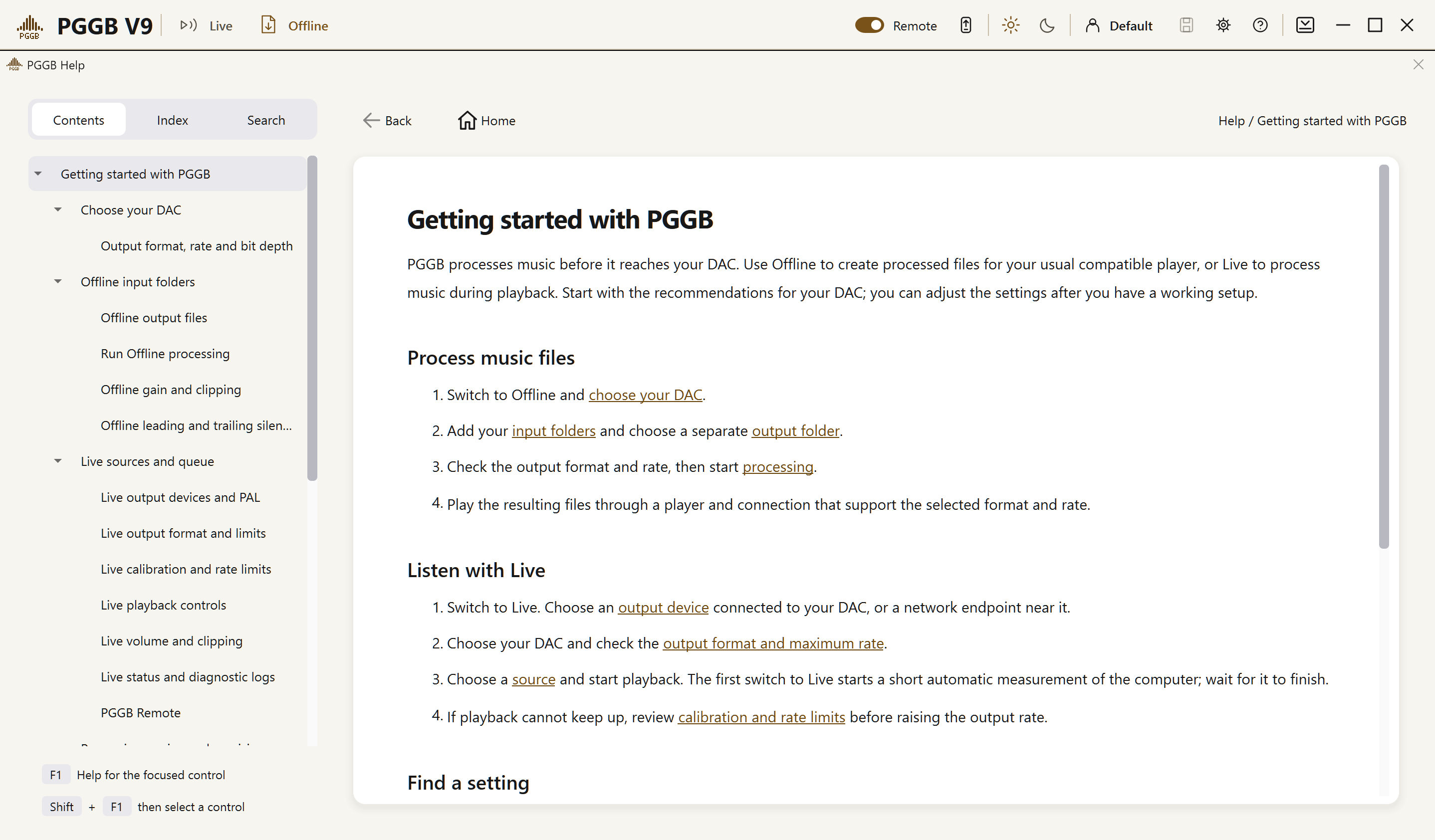
Features / 04
Start with our recommended DAC settings.
A DAC preset supplies starting settings for your model, so you do not have to choose every setting before listening.
The DAC model, input, player and connection determine which formats and rates will play. Adjust the suggested settings as you find what suits your system.
Look up your DAC here, then open Get started to set up PGGB with it.