PGGB / Live

Upsample music
as it plays.

PGGB-Live upsamples music in real time between your source and DAC. It does not create a second library of files.
Get started with Live
Disaster Area, the improbably loud intergalactic band
Disaster Area: the loudest band ↗

Live / 01

When to choose Live.

Why choose Live.

  • Listen to your own files or a streaming service through a compatible player.
  • Avoid storing a second, upsampled copy of your library.
  • Try different output settings without preparing new files each time.

What to plan for.

  • Your computer processes the music while it plays.
  • Available rates depend on the computer, source, player and output connection.
  • Playing to a network endpoint needs a compatible network connection.

Live / 02

From your source to your DAC.

  1. Your sourceFiles, streamed music, a player or a network source
  2. PGGB-LiveProcess while it plays
  3. Your DACDirect or supported network output
  4. Your musicControl from your desk or seat

Choose music in a compatible player. PGGB processes the signal in real time before it reaches your DAC.

Listen through a network endpoint.

PGGB-Audio-Link (PAL) is a small, free program that runs on the computer connected to your DAC. PGGB sends the processed music to it over your home network, so the processing computer can sit away from your listening system and provide isolation.

PAL is the preferred network endpoint where available. It provides a better playback experience by allowing PGGB to control the upsampled music all the way to your DAC. Use a compatible UPnP endpoint when PAL is not an option.

PAL supports Windows, Mac, Debian, Ubuntu, Raspberry Pi OS, Fedora and Arch Linux.

  1. PGGB computerProcesses the music
  2. Home networkCarries the processed audio
  3. PAL endpoint computerConnects to the DAC
  4. Your DACPlays the audio

PAL sends the DAC’s supported rates back to PGGB and supports native DSD where the endpoint and DAC allow it.

Set up PGGB-Audio-Link ↗

Live / 03

What you need.

A computer for LiveA Mac or Windows computer fast enough for real-time processing.

The computer stays on and processes the music throughout playback.

Operating system

Windows or Mac.

64-bit Windows 10 or 11, or macOS 12 Monterey or later. Apple Silicon and Intel Macs are supported. Intel and AMD processors must support AVX2.

Processor and memory

Recommended configurations.

Live PCM

16 GB RAM.

8-core processor

For Live PCM, we recommend an 8-core processor and 16 GB RAM.

On an Intel Mac, Live outputs PCM and Fast start is unavailable. DSD source files can play in Bypass or as PCM. Offline DSD output is unaffected.

Calibration finds the settings your computer can process in real time. Start with one familiar track and check that playback is steady.

Live DSD

24 GB RAM.

Modern processor with 16 or more cores

For Live DSD, we recommend a modern processor with 16 or more cores and 24 GB RAM.

Calibration finds the settings your computer can process in real time. Start with one familiar track and check that playback is steady.

Your music sourceFiles, a compatible player or a network source.
Music library windows showing albums and tracks

Play your own files directly, or send music from a compatible player or UPnP source. Qobuz and TIDAL can be used through a supported player or connection.

PGGB upsamples the music during playback, so you do not need to save a processed copy. The music still comes from your source.

Your DAC and connectionChoose an output the whole path supports.

Your DAC needs to accept the PCM or DSD format and rate you choose. Check the connection and driver as well as the DAC itself.

Connect your DAC to the processing computer, or use a compatible network DAC or endpoint. With a network connection, you can keep the processing computer away from the listening system.

Remote from your seatOptional: use a phone, tablet or browser.
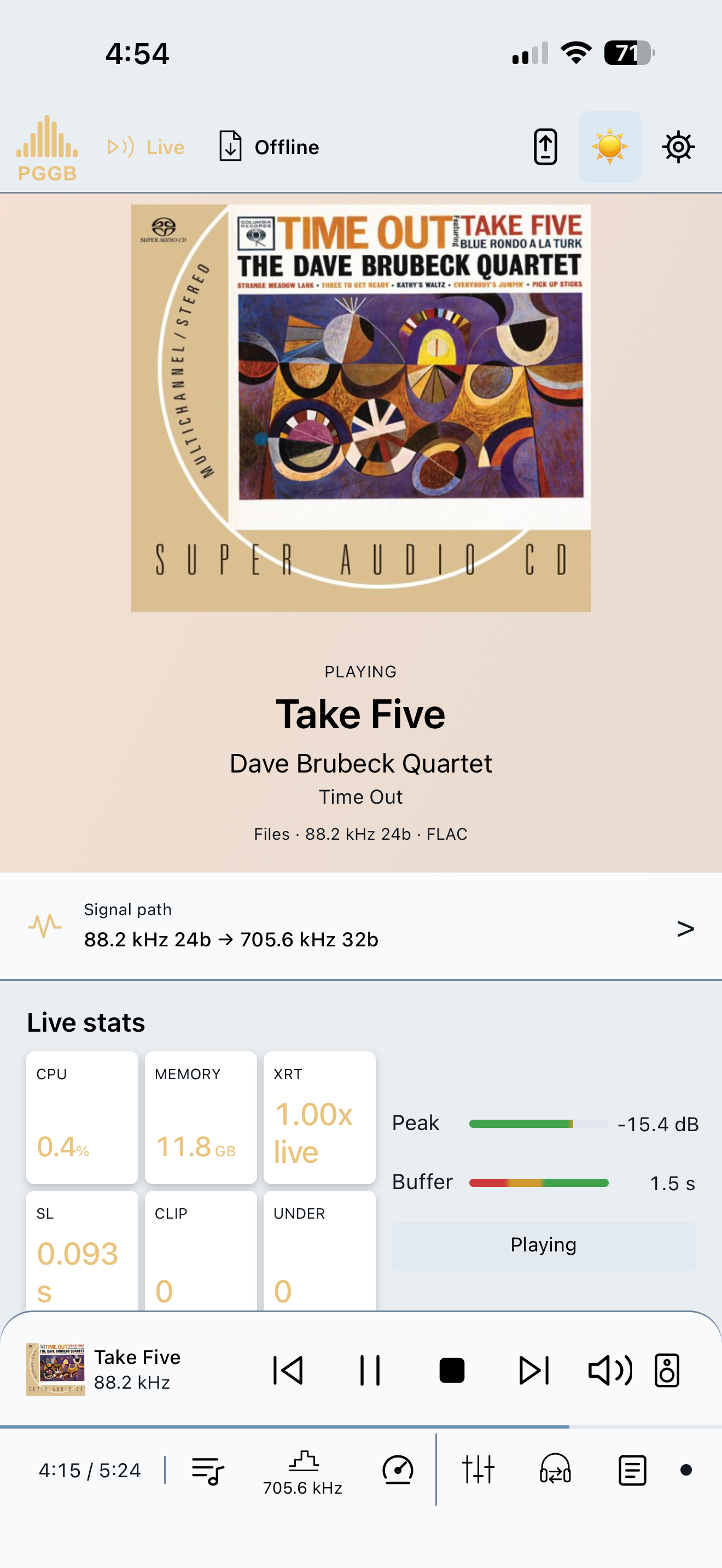
PGGB Remote playing Take Five, with signal path, Live stats and playback controls.

A phone, tablet or another computer on the same home network can control PGGB-Live from a browser. No separate phone app is needed.

Choose tracks, manage the queue and control playback from your seat. The PGGB computer still processes the music and sends it to your DAC.

Remote is optional; you can also control everything at the PGGB computer.

Live / 04

Where the music comes from.

Your own files.

Play tracks from your music library directly in PGGB-Live. There is no need to create a second, upsampled library first.

A player or streaming service.

Choose music in a compatible player, including Qobuz or TIDAL where supported. PGGB receives the audio through a connection supported on your platform.

Use Follow Roon to bring the current track and cover art into PGGB while Roon sends the audio through the Bridge.

If you rename the Roon zone, keep “PGGB” in its name to help PGGB identify it. With several matching zones, PGGB follows the only one playing; otherwise it keeps its current match, or takes the first Roon sends if none is followed yet.

PGGB with Roon ↗

A network source.

A supported UPnP source can send music to PGGB across your home network. The music source, processing computer and playback endpoint can be separate devices.

What you can connect depends on your player, operating system and connection. PGGB works with your source; it does not replace a streaming subscription.

Live / 05

Get started.

Get started covers the download, your DAC and how you play music. It ends with a walkthrough of the PGGB settings for your setup.

Offline or Live?

Offline and Live listening compared
CompareOfflineLive
Music sourcesMusic files you own, including PCM and DSD.Files, or streamed music through a supported player or connection.
ProcessingUpsample before listening. The computer does not have to process the music in real time.Upsample as music plays. The computer processes the music in real time.
PlaybackPlay the prepared files through a compatible player and DAC, including on another compatible system.PGGB sends the output to your DAC through a direct or supported network connection.
StorageKeep the upsampled files alongside your originals. Higher output rates need more storage.No second, upsampled library to store.
Changing settingsProcess the original files again to make copies with the new settings.Try different settings without preparing new files.
EQ and crossfeedParametric or convolution EQ, personalized crossfeed and optional Room reflections.Parametric or convolution EQ and personalized crossfeed. Room reflections are not available in Live.
Remote controlUse the controls available in your playback system.PGGB-Remote controls playback and settings from a browser on the same home network.
ComputerChoose a system for the output rates you want and the processing time you can allow. Offline requirements ↗Choose settings your computer can process in real time; calibration measures this for you. Live requirements ↗

Both modes can output PCM or DSD. Your license, computer, DAC and connection determine the available settings.

What are you looking for?