01 / On your computer
Enable Remote.
In the header, leave Remote enabled; it is enabled by default. Keep PGGB running. Remote works in both Live and Offline modes.

Included in PGGB / Remote control
Control Live playback, change settings or process files in Offline mode from a phone, tablet or another computer.
PGGB-Remote opens in your browser on the same home network. Your computer processes the music: Live sends it to your DAC, while Offline saves processed files. You do not need a separate phone app.
PGGB-REMOTE / 01
01 / On your computer
In the header, leave Remote enabled; it is enabled by default. Keep PGGB running. Remote works in both Live and Offline modes.
02 / Find the address
Press Links beside the Remote toggle in the header. Choose the address for your home network and copy it.
03 / On your phone
Connect to the same local network and open the address from PGGB. It will look similar to http://192.168.1.20:8180/. Use your own address, not this example.
The browser is the controller. Audio does not pass through the phone. Set up your source and DAC in PGGB-Live before your first Remote listening session.
On Mac, include PGGB Remote (web control) when choosing the installer components.
Configure Live playbackPGGB-REMOTE / 02
Remote can also control Offline processing. Choose the input folders and output location on the PGGB computer, then start, pause or stop the job and follow its progress.
Live and Offline in the header switch PGGB’s operating mode on the computer. The Remote view follows that choice.
Choose Offline to process files. Stop playback or processing before switching modes. If PGGB is busy, Remote shows its message and keeps the current mode.
These Process and App controls are for PGGB. PGGB-IT Live has its own supported Remote controls.
Offline workflow ↗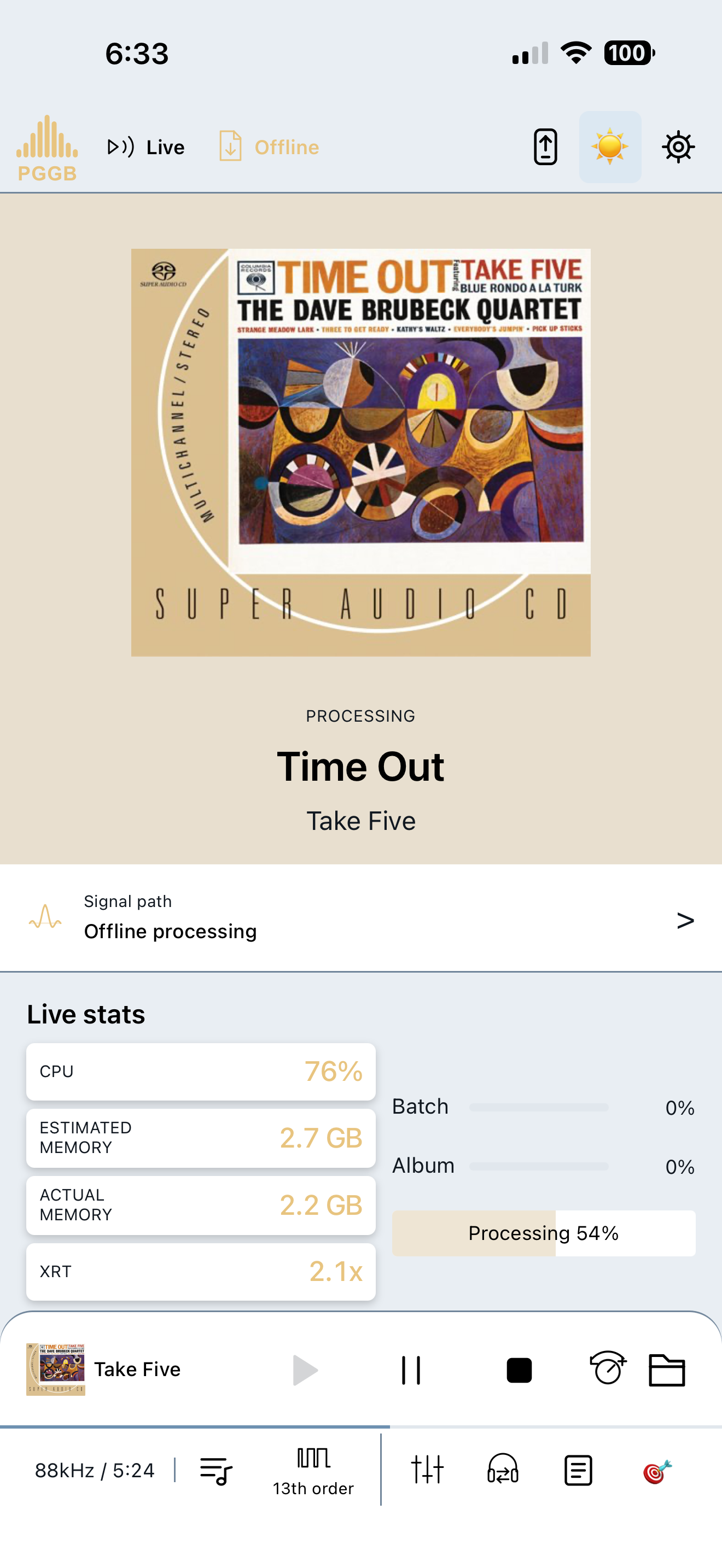
PGGB-REMOTE / 03
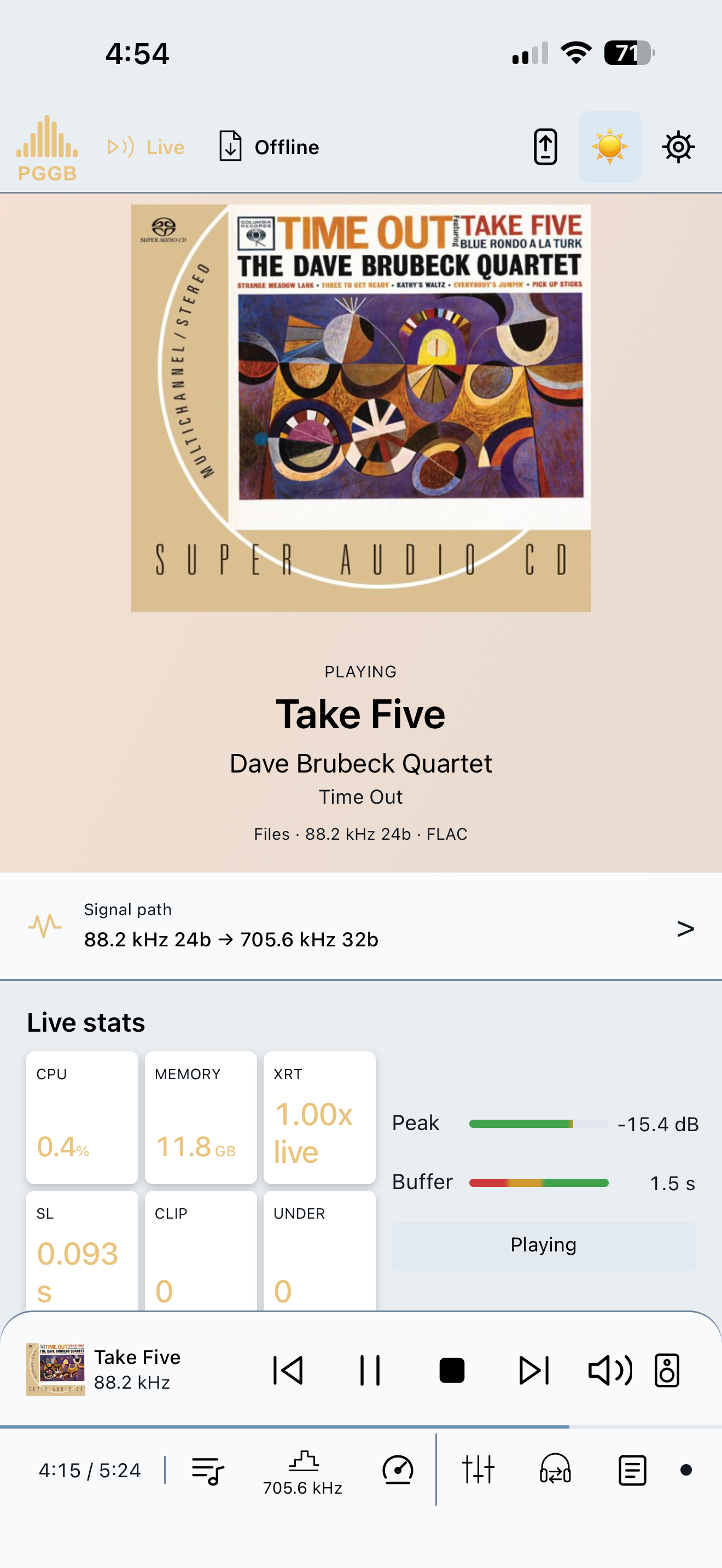
The playback view shows album art, the track, position, buffer and level meters. Use Previous, Play/Pause, Stop and Next, with volume and mute subject to the limits set on the desktop.
With local files, browse folders on the PGGB computer and add a track or folder to the queue. Track titles and durations help you see what will play next. If your player sends its music to PGGB, use the player’s own app to browse and play.
With Follow Roon enabled, Roon’s track details and cover art also appear here. Set up Follow Roon ↗
The track bar supports seeking when the source supports it. Continuous network streams show a Live indicator and do not support seeking. The controls are limited by what PGGB-Live can do with that source.
Buffer meters show how much processed audio is ready for playback. Peak meters show signal level, with green, amber and red zones. A clip indication is a reason to check gain and headroom. Live stats and the session log provide more detail if playback needs attention.
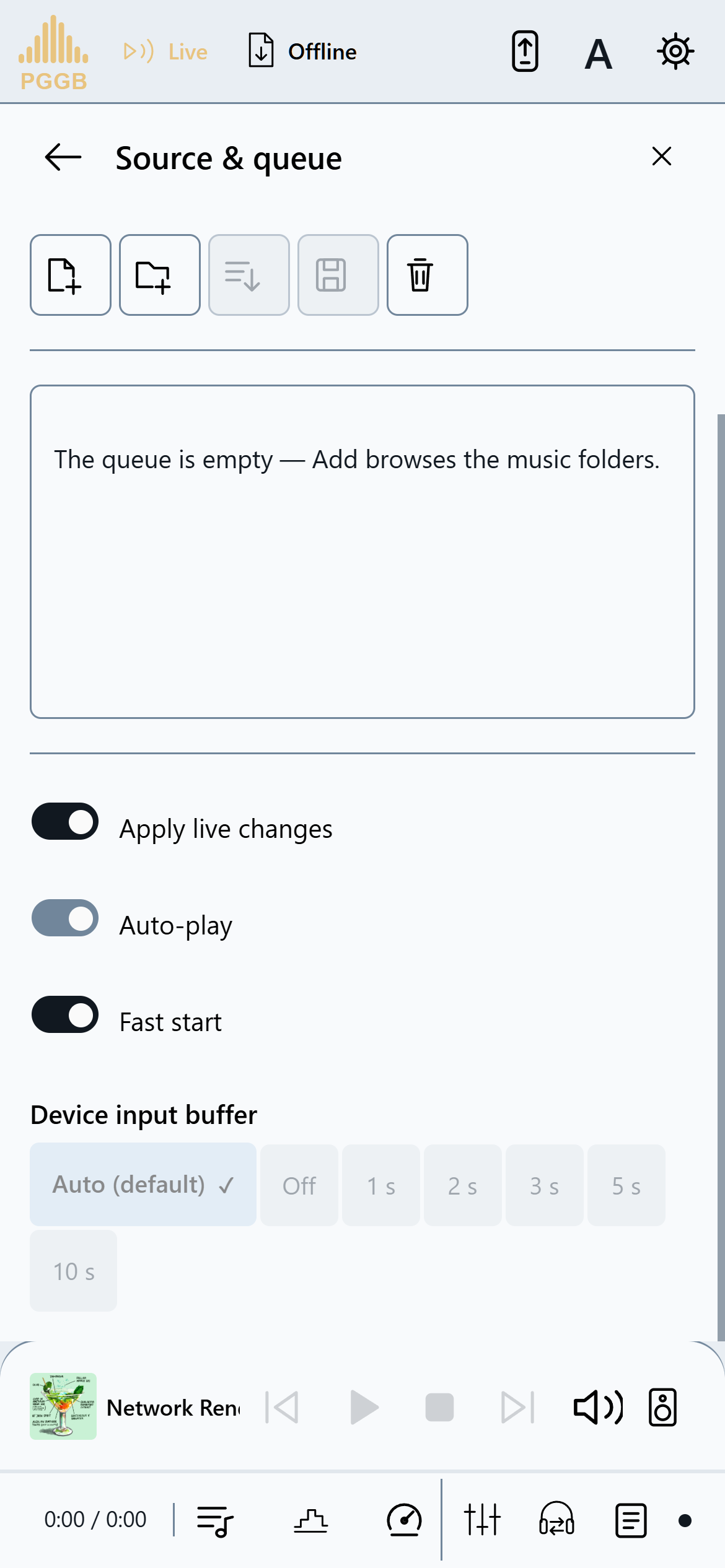
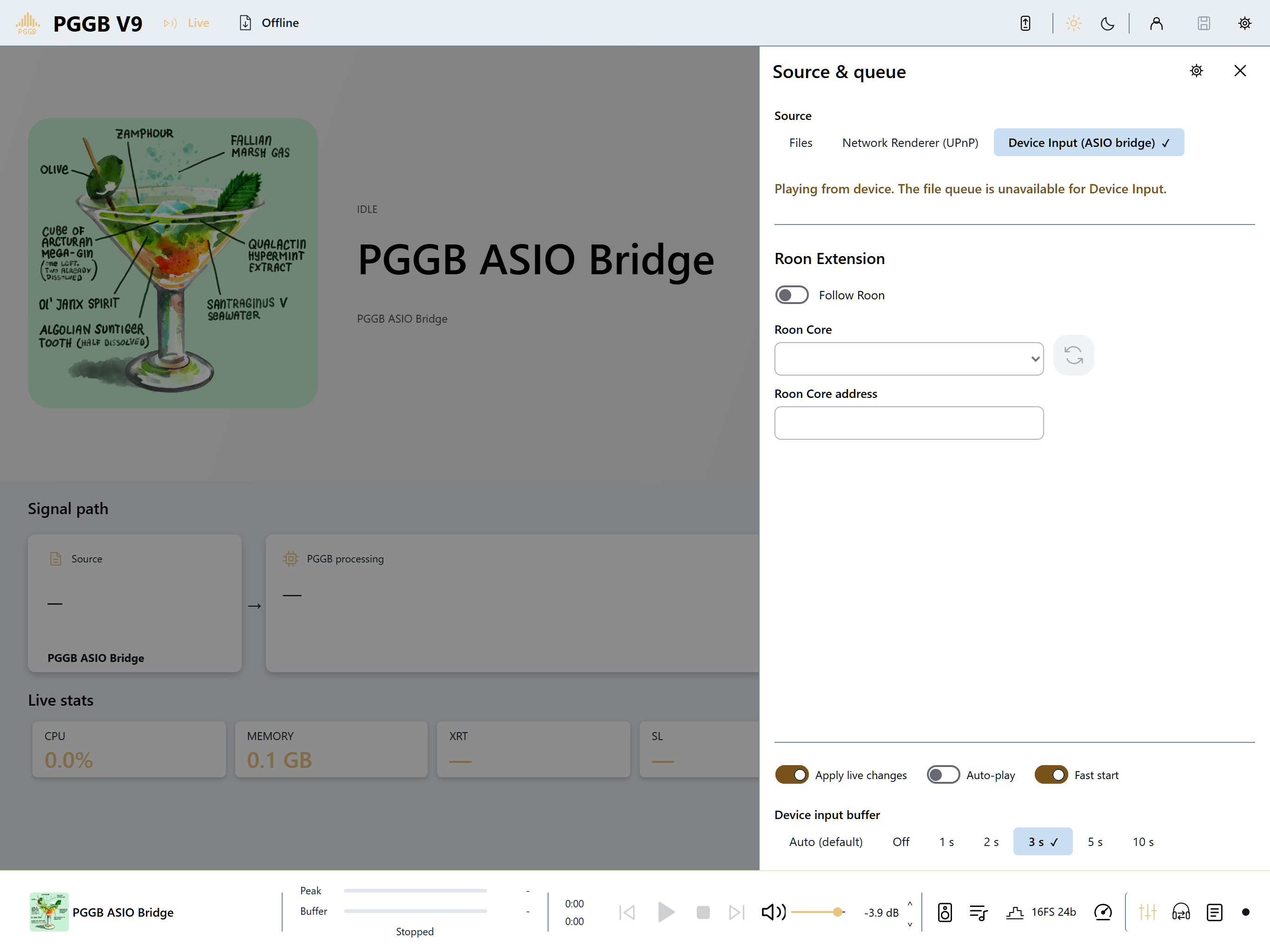
In Remote, follow Settings (gear icon) → Live → Source & queue → Device Input → Roon Extension. The Roon controls appear below the source selector. Turn on Follow Roon, then choose your Roon Core.
If the Core is not listed, use Refresh or enter its address and press Enter. The list, Refresh and address box are disabled until Follow Roon is on.
In Roon, enable PGGB under Settings → Extensions and play to PGGB Live on Windows or PGGB Bridge on a Mac. You can then use Play, Pause, Stop, Previous and Next in Remote to control Roon. To seek within a track, use Roon itself.
When choosing a zone to follow, PGGB first looks for the bridge’s usual name: PGGB Live on Windows or PGGB Bridge on a Mac. For this match, capitalization, spaces and hyphens do not matter.
If you rename the zone, keep “PGGB” in its name: PGGB prefers those zones and follows the one playing if several match. With no “PGGB” name, it follows the only zone or the only one playing; if several are playing and PGGB cannot identify yours, it waits until only one is playing.
If several zones have “PGGB” in their name or an output’s name, and none or more than one is playing, PGGB keeps following the match it has already chosen. If it has not chosen one since starting, it takes the first match Roon sends; this may differ from the order shown in Roon.
The status line shows Following “<zone name>”. Pausing that zone keeps it followed.
The screenshot shows the starting state, before Follow Roon is enabled. The file queue is unavailable for Device Input; choose your music in Roon.
Set up PGGB with Roon ↗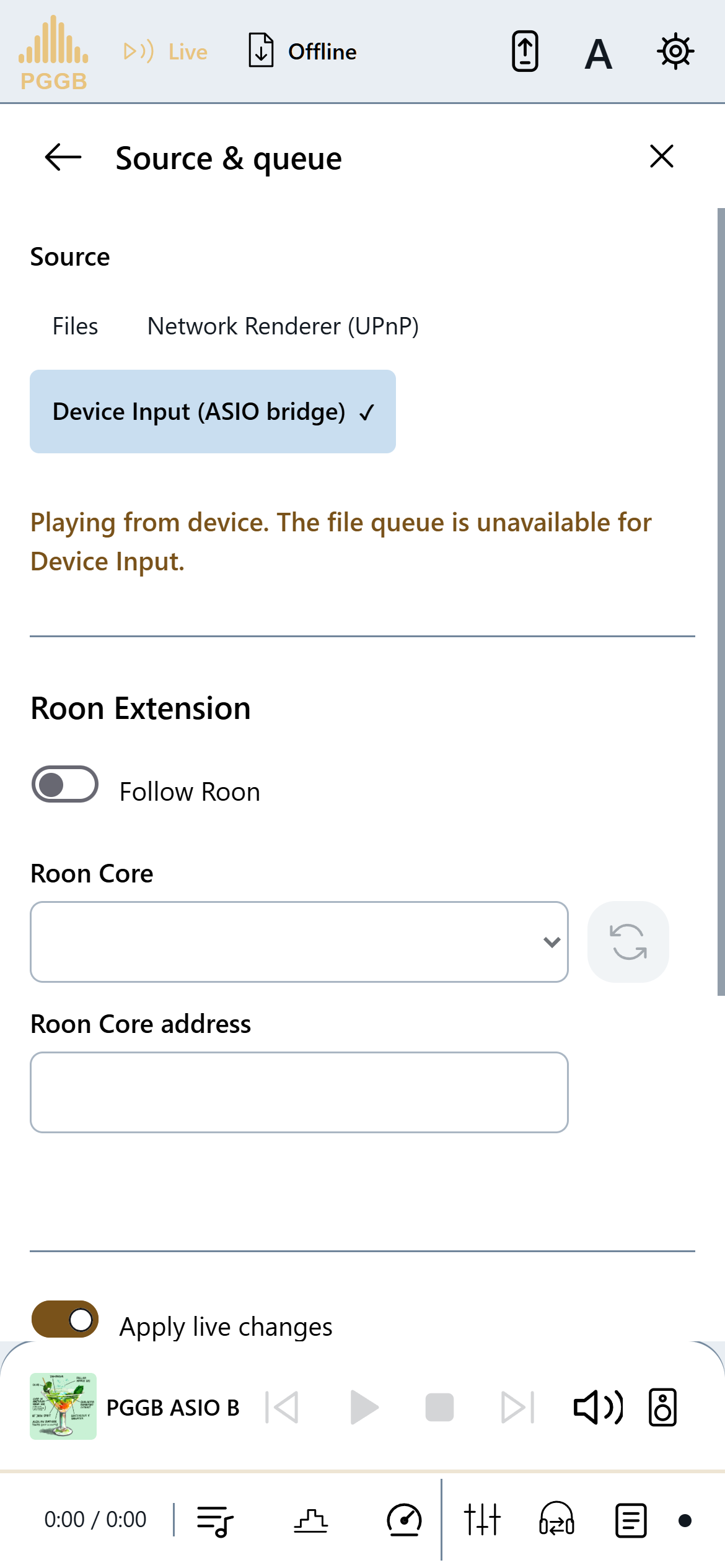
PGGB-REMOTE / 04
Select a local DAC or a network endpoint. For network output, use PGGB-Audio-Link (PAL) when available, with UPnP as the fallback. The PAL endpoint: field lets you enter an address if discovery cannot find it. Open Settings with the gear icon. Gain is under Offline; EQ and PGGB-ARC are under Personalize Sound.
Remote uses the same license as your desktop. Options outside your license remain visible but are grayed out. Changes that require playback to restart behave as they do on the computer.
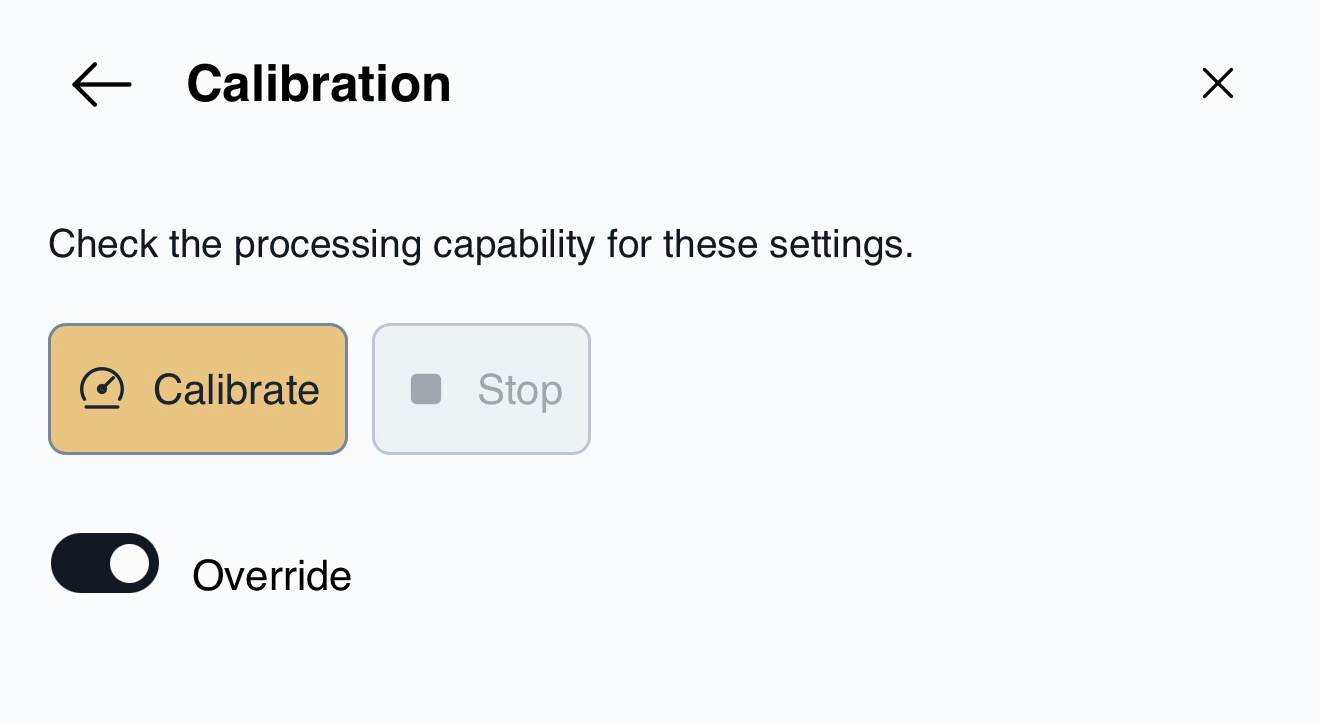
Calibrate measures the input rates that have not yet been measured for your current output settings. Once all rates have been measured, the button becomes Recalibrate. Recalibrate replaces the results for these settings; results for other output configurations stay saved. With DSD output, a new setting starts playing while PGGB measures it during the first minutes of playback. The same applies to PCM on the Precision Optimized Engine at 107, 128 or 256 Bit and 176.4 kHz or higher, with Dither Only off. On the first play of an unmeasured setting, the measured speed can take a few minutes to appear on the strip. If you stop before it appears, PGGB saves any result it already has. If there is no result yet, the next Play measures the setting again. Device Input still measures before playback. Other PCM settings start from an estimate when one is available; otherwise PGGB measures before the music starts. Use Calibrate for a measured result. An estimate is a starting point, not a measured result. Calibration checks PCM input rates from 44.1 to 384 kHz and DSD64. Use Stop calibration to end it and keep completed measurements.
Allow about 10 minutes to calibrate a PCM limit or about an hour for a DSD limit. In Device Input, the player must be sending audio to PGGB Bridge; Calibrate stops PGGB playback before measuring. With Files or Network Renderer, stop PGGB playback first. No audio is sent to the DAC during calibration.
While a setting is being measured during playback, the status bar shows Playing — measuring this setting and the elapsed time. When the measurement finishes, PGGB saves the result and XRT shows it. On a fast computer, the result may remain an estimate, marked est.; use Calibrate for an exact measurement. If you stop early, nothing is saved and the next Play measures during playback again. If PGGB falls behind, nothing is saved and the next Play in this session measures before playback.
This applies when you press Play, double-click a track while stopped, or start playback from a control point. A rate change during playback uses an estimate; PGGB measures that setting the next time playback starts on it. Device Input continues to measure before playback.
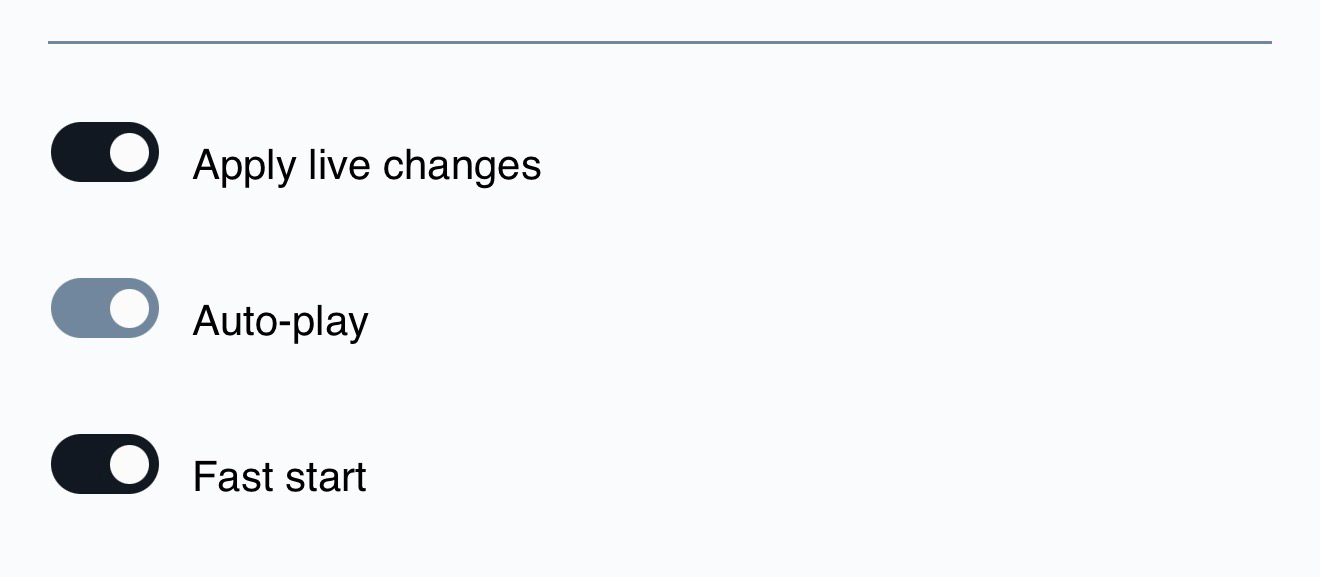
Fast start is on by default. When it is off, PGGB waits for the first pieces of processed audio before starting. Playback then behaves the same as with Fast start on. Seeking, the next track and Play from a UPnP control point still start quickly.
On an Intel Mac, Live outputs PCM and Fast start is unavailable. DSD source files can play in Bypass or be converted to PCM. Offline DSD output is unaffected.
Open Settings → Live → Source & queue to find Fast start. It changes the same setting as the checkbox on the computer.
Live logs controls the on-screen session log. It is on by default. Turn it off to stop new lines, including errors, from appearing; existing lines remain. Log diagnostics writes a separate file and is independent of this switch.
Clear log empties the on-screen Live log on both Remote and the computer. It does not change the Live diagnostic log file.
PGGB-REMOTE / 05
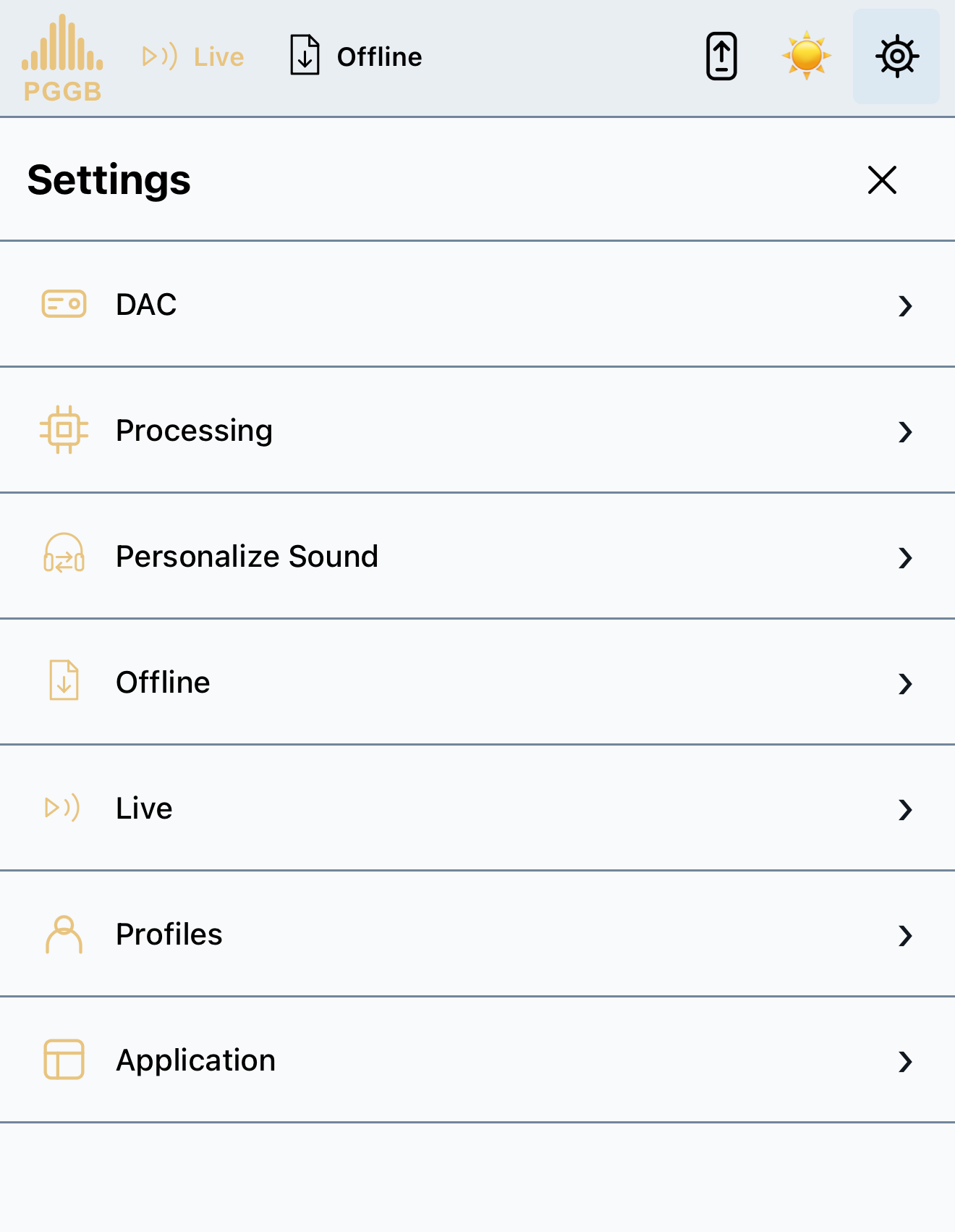
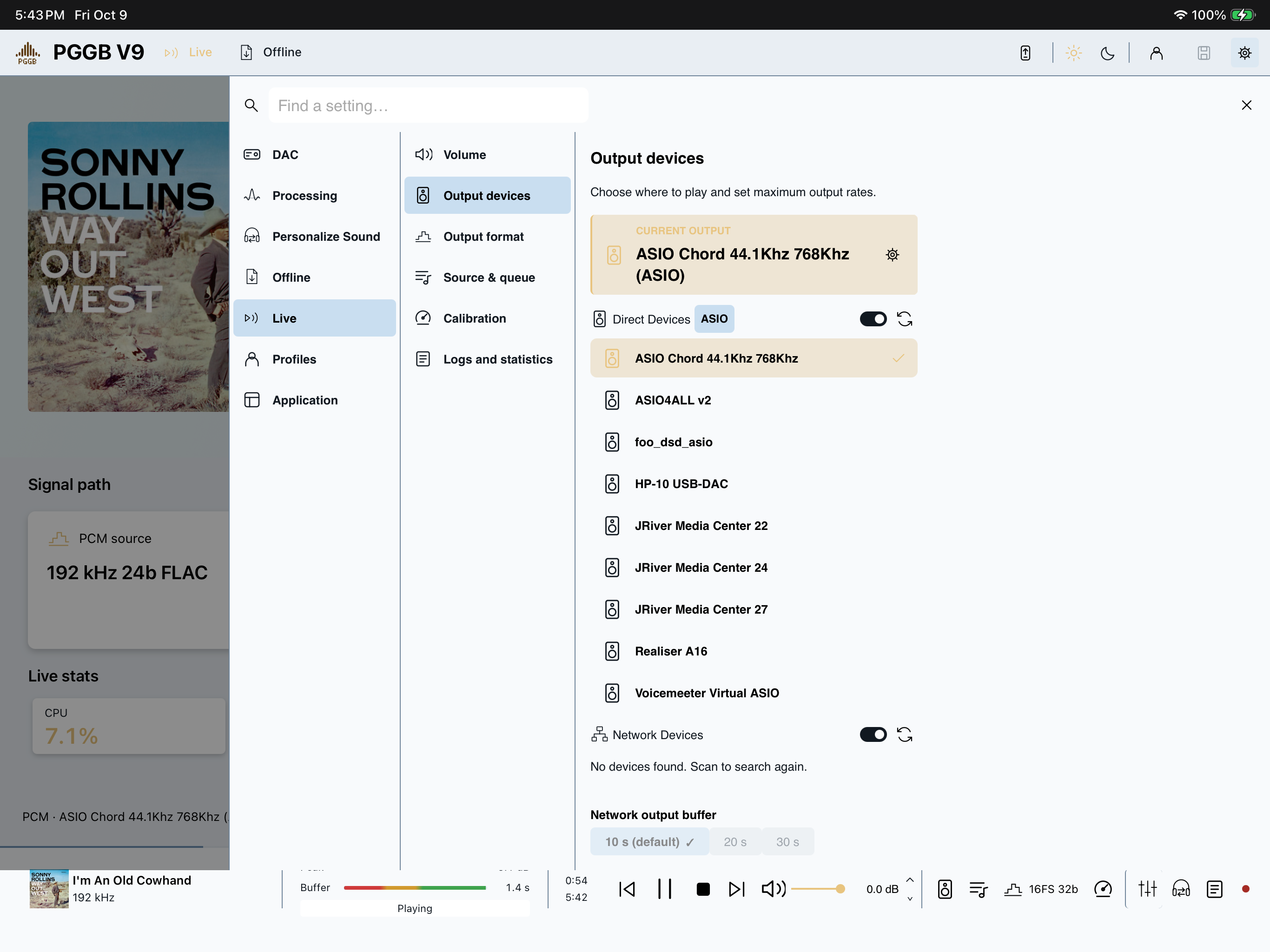
On a wider screen, Settings uses columns for categories and pages. Open it with the gear icon to adjust the available controls.
On a phone, open Settings with the gear icon and choose a category, then a page. Use Back to return. The footer shortcuts show current information; their gear icons open the related settings.
Choose a light, dark or automatic theme to suit your preference. The controls use the same color theme as the desktop application.
PGGB-REMOTE / 06
Add Remote to your home screen for quicker access. Supported browsers can open it with its own icon and an app-like layout.
Open your Remote address in Safari. Open Share, choose Add to Home Screen, then Add.
Open the address in Chrome. Open the three-dot menu and choose Add to Home screen or Install app, if offered.
Menu wording varies by browser. A normal browser tab works too. The shortcut still connects to PGGB on your computer.
PGGB-REMOTE / 07
Check that PGGB is running with Remote enabled. Both devices must be on the same local network; a guest Wi-Fi network may keep devices apart. Open Links again and use the current home-network address.
A router can assign the computer a different address. Copy the new address from Links and update your bookmark or home-screen shortcut.
Remote uses port 8180. If another program is using it, PGGB reports the conflict and Remote remains off. Close the conflicting service if appropriate, then enable Remote again.
Check the source, endpoint and playback state in PGGB-Live. The phone only controls that session. Use the session log and Live stats to investigate, or return to the Live guide for source and calibration instructions.