Real-time playback · Beta
Zaphod’s Guide to PGGB-Live
"Time is an illusion. Lunchtime doubly so."
Connect Roon, JRiver, foobar2000, Audirvana or Qobuz to PGGB-Live, or play your own files. Start with the setup wizard.

What PGGB-Live is
What it does.
PGGB-Live brings real-time playback to PGGB V9. It processes your music as you listen and sends the result directly to your DAC, or to a streamer on your local network.
You can play files directly in PGGB, receive audio from another player on the same computer, or receive music over the network. Choose the source that suits the way you already listen.
PGGB-Live uses the Precision Optimized Upsampling Engine and the settings in Settings. Processing precision describes the accuracy of PGGB's internal calculations; it is separate from the bit depth sent to your DAC. The available processing includes: Read about the PGGB engine ↗
- PCM or DSD output at the selected sample rate
- High precision processing
- PGGB-EQ equalization to adjust the tonal balance
- PGGB DSD modulators and PCM Noise Shapers
- PGGB-ARC crossfeed for headphones
Live playback sends the processed audio to your output device as it is generated. For files you want to keep and play later, use offline remastering in Offline mode. ARC's Room processing is available only offline.
Choose Live in the header. For file conversion and the shared processing settings, see the PGGB guide.
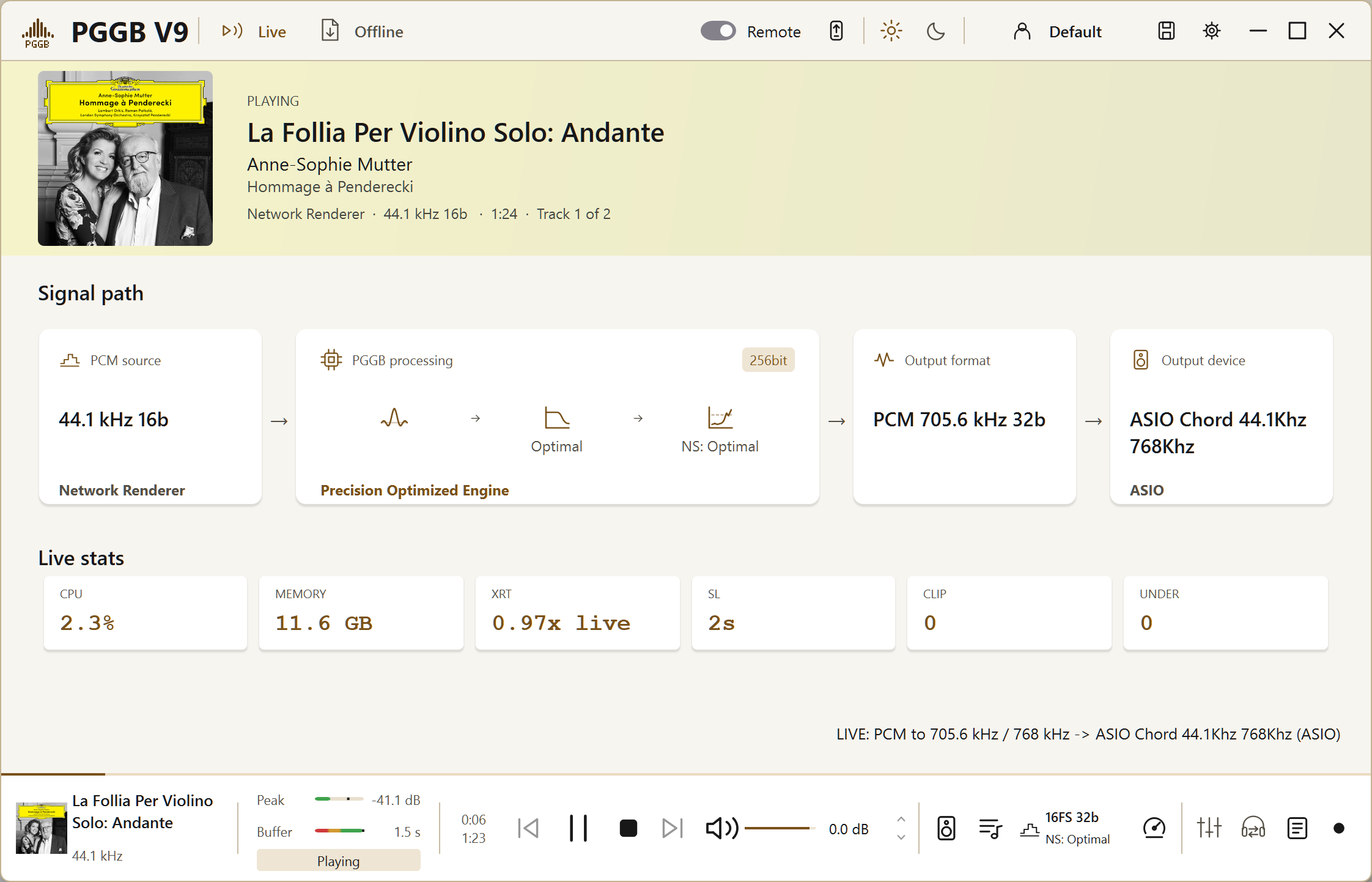
Live mode during file playback. The Signal display shows the processing applied before the audio reaches your DAC.
About the beta.
PGGB-Live is in beta. It is available to use, and your feedback helps us improve it. If you encounter a problem, please send details to zb.pggb@gmail.com.Offline remastering continues to work as before.
Setting it up.
Choose your setup.
Find your setup, one choice at a time.
Step 1 of 5 · Music server
For Roon, JRiver, foobar2000, Audirvana and other common players, see Which route your player needs.
Once playback is working, you can adjust the processing settings and compare the results on the same track.
For an illustrated introduction to the controls, see Explore PGGB App.
Where the music comes from.
PGGB-Live accepts music from three types of source. The source determines where you choose tracks and manage the queue.
- Your own files. Add music to PGGB and use its playback controls.
- Your player, through the PGGB Bridge. Keep using a player on the same computer and send its audio to PGGB.
- From the network. Use a compatible app to send music to PGGB over your local network.
Your own files.
Live also reads PCM and DSD WavPack files. Stereo DSD WavPack input is supported from DSD64 through DSD1024. 48 kHz-family DSD sources are supported. Allow 48x DSD is on by default and permits output at a 48 kHz-family DSD rate.
Playing files directly is a good starting point to understand what your PC or Mac is capable of processing in real time, because PGGB handles both the queue and the audio processing.
- Add individual tracks, drag and drop a folder, or open a playlist you saved earlier.
- Supported file types are .wav, .flac, .aif, .aiff, .m4a and .dsf.
You do not need to configure a separate player for this source.
Your player, through the PGGB Bridge.
The PGGB Bridge is a virtual audio device installed with PGGB. Select it as the output in your usual player, and the player sends its audio to PGGB for processing. Both applications must run on the same computer.
- Windows: the Bridge appears as an ASIO device called PGGB-Live input bridge. Your player must support ASIO output, either directly or through an output component.
- Mac: the Bridge appears as a Core Audio device, using the Mac's audio system.
For the best results, disable additional processing in the source player. This includes equalization, sample rate conversion, dither, bit depth conversion and software volume adjustment. Use PGGB for the processing and level changes you need. These player features are often grouped under DSP (digital signal processing).

Source and queue with Device Input selected. Follow Roon is off, with no Core selected.
Step by step.
- Open Settings → Live → Source and queue → Device Input.
- Open the audio output settings in your source player.
- Select the PGGB Bridge from the local audio devices. On Windows, it is named PGGB-Live input bridge.
- Press Play in your source player. With Auto-play enabled in PGGB, playback starts when audio arrives.
The Input Buffer shows incoming audio. Continue to manage the queue, track changes and artwork in your source player.
Input and output rates are separate. For example, Qobuz may show an input limit of 24-bit/192 kHz. That describes the audio sent to PGGB. PGGB's output format and rate are set separately, as described under Choosing an output.
Qobuz with PGGB-Live input bridge selected as its audio output.
From the network.
PGGB can receive music as a UPnP renderer. UPnP is a way for compatible audio applications and devices to find each other on a local network. The renderer receives and plays the music; the control point is the app you use to choose tracks and control playback.
Choose this source if you keep your music on a server or another computer and use an app that supports UPnP playback. In this setup, PGGB receives the music, processes it and sends it to your selected output.

Network Renderer receiving music selected in a UPnP control point.
Step by step.
- Open Settings → Live → Source and queue → Network Renderer. PGGB announces itself on your network as PGGB-Live.
- Open your UPnP control app on the same network. Supported routes for common players are listed below.
- Open the app's list of players, output devices or zones.
- Select PGGB-Live as the playback destination.
- Choose your music and press Play.
Use the control app to manage the queue, skip tracks and change albums. PGGB displays the incoming stream and the processing it applies.
If PGGB-Live is missing from the list, wait a few seconds and refresh the control app. Both devices must be on the same local network, and the network must allow UPnP discovery. Guest networks and device isolation can prevent discovery.
JRiver Media Center with PGGB-Live selected as the playback zone.
Which route your player needs.
Your player can send music to PGGB in two ways: over the network, or through the PGGB Bridge, which appears as an audio device on the same computer.
If your player supports both network playback and the Bridge, start with the network (UPnP), which gives PGGB full
control over playback. UPnP works on the same computer or
between computers. The Bridge requires the player and PGGB to
run on the same computer.
For the Bridge, set PGGB’s source to Device Input. For UPnP, choose Network Renderer. Follow the matching row below.
| Player | Route | What to do |
|---|---|---|
| Roon | The Bridge only |
Run Roon on the PGGB computer. Open Roon’s Settings → Audio, enable PGGB Live under ASIO on Windows or PGGB Bridge on Mac, and select its zone. For the zone settings, follow Settings → Audio → your PGGB zone → Device setup and set both Private zone and Exclusive mode to Yes. Roon does not send audio directly to UPnP renderers. 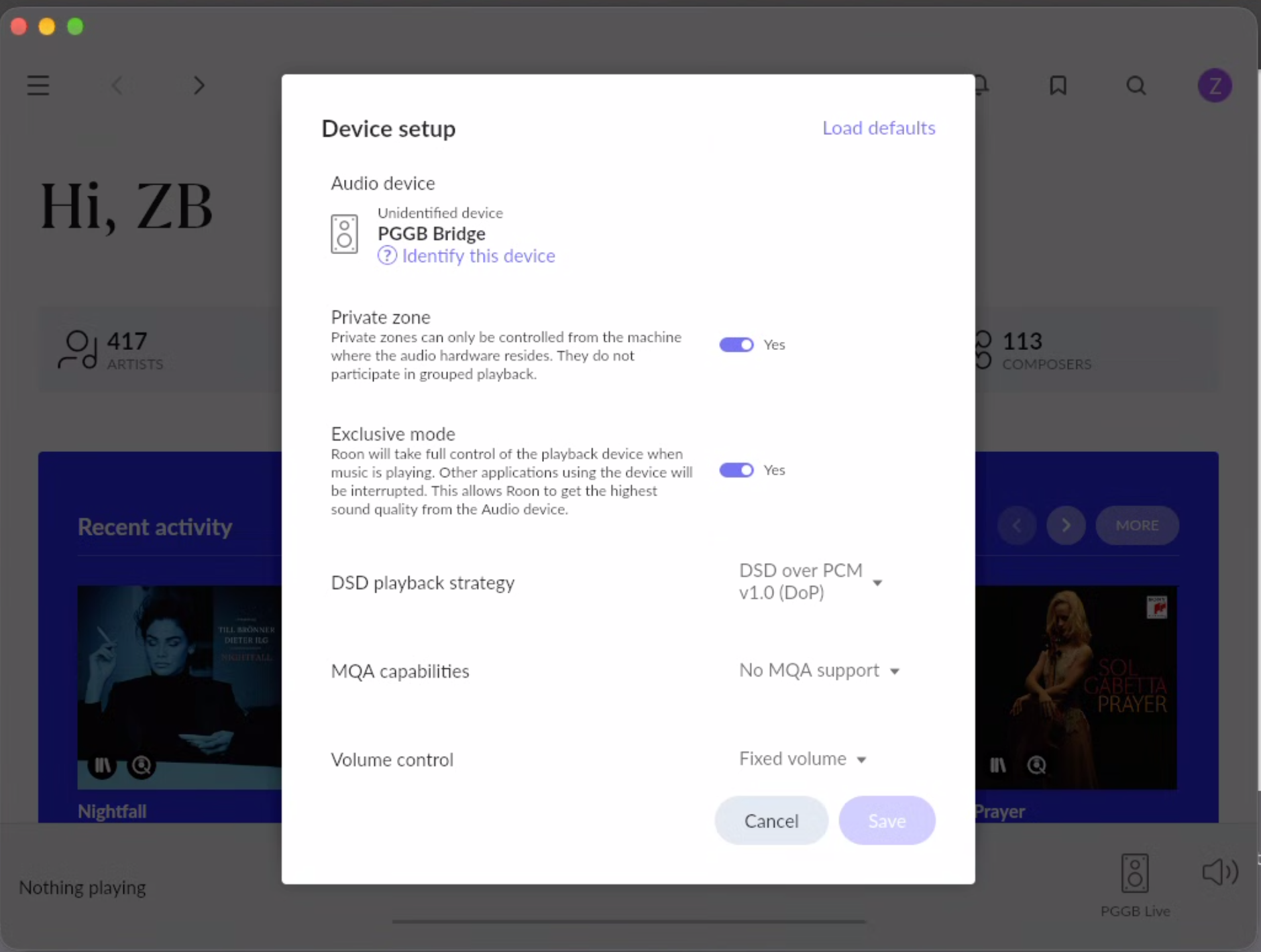 If you rename your Roon zoneWhen choosing a zone to follow, PGGB first looks for the bridge’s usual name: PGGB Live on Windows or PGGB Bridge on a Mac. For this match, capitalization, spaces and hyphens do not matter. If you rename the zone, keep “PGGB” in its name: PGGB prefers those zones and follows the one playing if several match. With no “PGGB” name, it follows the only zone or the only one playing; if several are playing and PGGB cannot identify yours, it waits until only one is playing. If several zones have “PGGB” in their name or an output’s name, and none or more than one is playing, PGGB keeps following the match it has already chosen. If it has not chosen one since starting, it takes the first match Roon sends; this may differ from the order shown in Roon. The status line shows Following “<zone name>”. Pausing that zone keeps it followed. |
| JRiver Media Center | The network |
Select PGGB-Live as the playback zone, then choose your music and press Play. JRiver can run on the PGGB computer or another computer on the same local network. |
| JRiver Media Center | The Bridge |
In the local zone's audio settings, select the PGGB Bridge as the audio device: PGGB-Live input bridge through ASIO on Windows, or the Bridge's Core Audio device on Mac. Run JRiver and PGGB on the same computer. |
| foobar2000 | The network |
Select PGGB-Live from the output device list. Version 2.25 and later includes UPnP output, so no additional component is needed. For Windows versions 1.6 through 2.24, install the UPnP MediaRenderer Output component (foo_out_upnp) and restart foobar2000 first. |
| foobar2000 | The Bridge |
On Windows, install the ASIO Output component (foo_out_asio) and restart foobar2000. In Preferences > Playback > Output, select the ASIO output for PGGB-Live input bridge. On Mac, select the PGGB Bridge as the local output device; the Windows ASIO component is not needed. |
| Audirvana | The network |
Open the output selector using the speaker icon at the bottom right and choose PGGB-Live from the UPnP network devices. If the current output is locked, click the lock icon to release it before changing devices. |
| Audirvana | The Bridge |
Open the output selector using the speaker icon at the bottom right. Choose PGGB-Live input bridge through ASIO on Windows, or the PGGB Bridge under local audio devices on Mac. |
| Qobuz desktop app | The Bridge |
Open the audio output list and select the PGGB Bridge. On Windows, choose PGGB-Live input bridge under ASIO. The rate shown in Qobuz describes the audio sent to PGGB; choose PGGB's output rate separately. |
| TIDAL desktop app (Mac) | The Bridge |
In Settings > Streaming > Sound Output, select PGGB Bridge. Run TIDAL and PGGB on the same Mac . The Windows app uses WASAPI and cannot feed the ASIO Bridge. |
| JPLAY appVerified with PGGB | The network |
In Settings > Audio Outputs, select PGGB-Live. Use Search Devices if it is missing. JPLAY FEMTO is a separate renderer and is not needed for this route. |
| VeraVox (Mac)Verified with PGGB | The network (UPnP) | Stop playback, open the output selector (speaker icon) and choose PGGB-Live. Keep VeraVox and PGGB on the same local network. VeraVox help ↗ |
| VeraVox (Mac)Verified with PGGB | PGGB Bridge | On the same Mac, select PGGB Bridge as VeraVox’s output. Shared, exclusive and hog modes are supported. VeraVox help ↗ |
| BubbleUPnP | The network |
In Now Playing, open the playback device selector and choose PGGB-Live. Then open Library to choose the music you want to play. |
| mconnect Player | The network |
Open Play To and select PGGB-Live. Use Browser to choose your music. Use the mconnect Player app; mconnect Control requires compatible mconnect hardware. |
| Kinsky | The network |
Choose PGGB-Live in the room selection list. Open Library, select your music server and add tracks to the playback queue. |
Where it plays.
Choosing an output.
Choose another output device while Live is playing to continue from the same position on that device. If playback is paused, it stays paused. During buffering or finishing, a device of the same type takes over when playback begins; a different type cannot take over then.
The output list shows short DAC names. Hover over a row for its full name. If two devices would have the same short name, both keep their full names. Previously saved device selections still work.
The output device is where PGGB sends the processed audio. It can be a DAC connected to the PGGB computer, a PAL endpoint computer connected to your DAC, or a compatible UPnP streamer.
Select your output under Settings → Live → Output devices:
- Endpoint Type: the audio connection, such as ASIO or Core Audio.
- Endpoint: the DAC or network renderer you want to use.
- Rescan: refreshes the device list. Use it after connecting a DAC or when looking for network renderers.
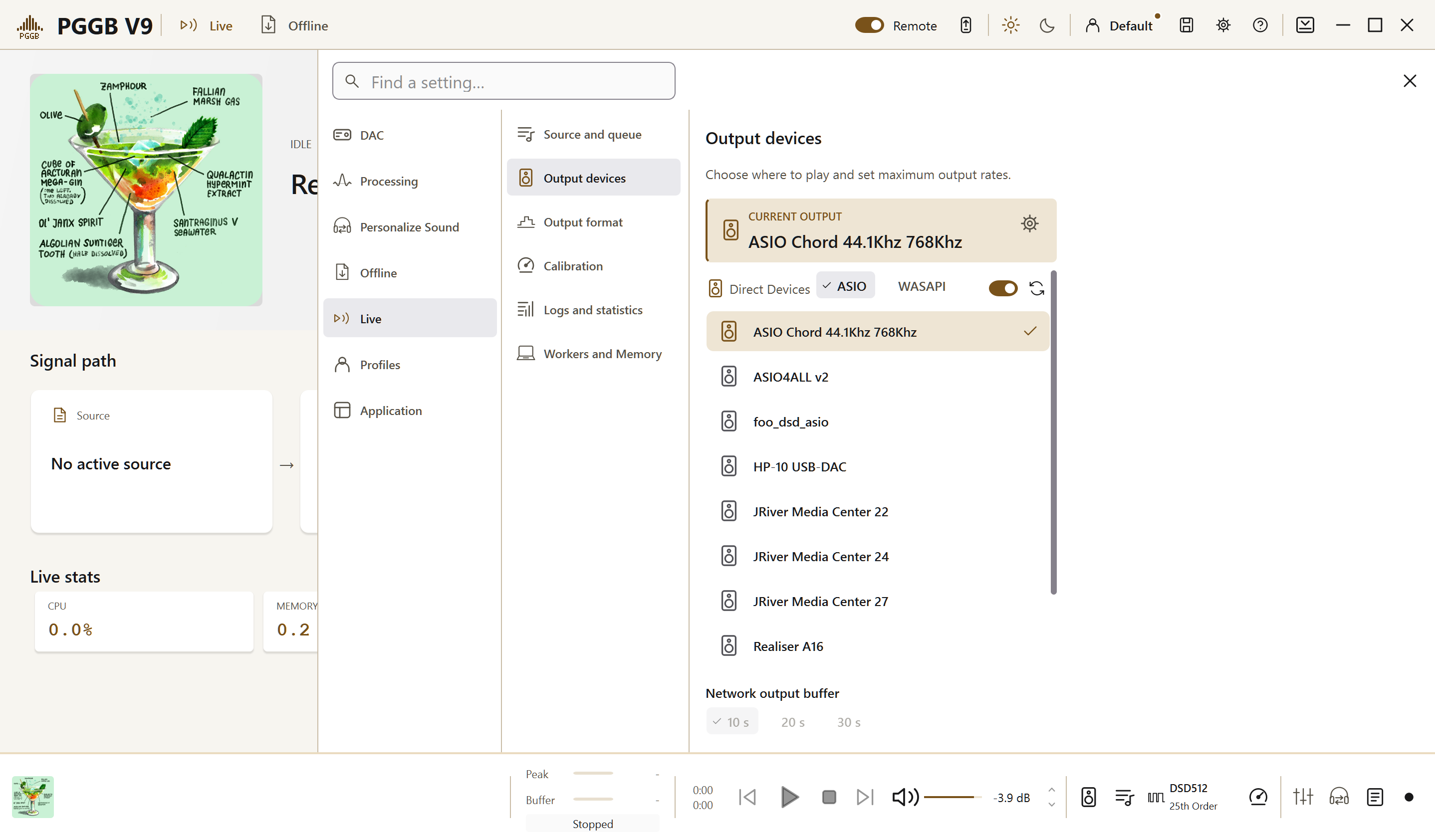
Output devices, with a Direct ASIO output selected.
Use Offline or Live in the header to choose the mode. Stop live playback before switching modes. Under Settings → Live → Output devices, choose Direct for a local DAC or Network for a PAL or UPnP endpoint, then select the device:
- WASAPI (Windows). Uses Windows audio output without a separate ASIO driver. PGGB opens the selected device in exclusive mode, so other applications cannot use that output while PGGB is playing. Stop other playback to the device first.
- ASIO (Windows). Uses your DAC manufacturer's ASIO driver. We recommend it when available, particularly for high sample rates and Native DSD. PGGB checks installed ASIO drivers and displays the capabilities each driver reports.
- Core Audio (Mac). Uses a Mac audio output device. PGGB takes exclusive control of the selected device during playback.
- PGGB-Audio-Link (PAL). The preferred network output when the DAC computer can run PAL. Use the Scan devices icon in Network Devices and choose its computer and DAC. Set up the PAL endpoint.
- UPnP (network). Use a compatible streamer or network DAC when PAL is not an option. Press Rescan to search; PGGB does not automatically scan for output renderers at startup.
The two gray status lines below Endpoint explain the available rates:
- The first shows the capabilities reported by your DAC's driver.
- The second shows what calibration measured your computer can process in real time.
For a local DAC, the available rates must satisfy both limits. A rate supported by the DAC may still be too demanding for the computer.
A UPnP renderer does not report its rate limits to PGGB, so all output rates are offered. Override limits is on by default. If you turn it off, the list is limited by what your computer has measured. Check your renderer's supported rates before selecting one. For DSD over DoP, the renderer must pass the DSD through correctly; decoding the DoP stream as ordinary PCM can produce noise.
If the device you expect is not listed.
- Connect the DAC and switch it on.
- Press Rescan. Devices connected or powered on after PGGB started need a rescan to appear.
If no device is found, PGGB displays: ‘No audio endpoints found. Connect a device and Rescan.’
For a missing network renderer, check the ‘Network: searched’ entry in the session log. If it lists only a VPN or virtual network adapter, PGGB may not be searching your local network. Try disconnecting the VPN, then press Rescan.
PGGB-Audio-Link: a network connection to your DAC.
PGGB-Audio-Link (PAL) is a small, free program that runs on the computer connected to your DAC. PGGB sends the processed music to it over your home network, so the processing computer can sit away from your listening system and provide isolation.
PAL is the preferred network endpoint where available. It provides a better playback experience by allowing PGGB to control the upsampled music all the way to your DAC. Use a compatible UPnP endpoint when PAL is not an option.
- PGGB computerProcesses the music
- Home networkCarries the processed audio
- PAL endpoint computerConnects to the DAC
- Your DACPlays the audio
PAL carries audio. PGGB-Remote is the separate browser control for your phone or tablet. PAL is not a UPnP renderer; a UPnP player can still feed music into PGGB while PAL carries the processed output to your DAC.
On the computer connected to the DAC.
- Install the PGGB-Audio-Link endpoint. On Windows or Mac, use the endpoint-only option in the PGGB installer, or the separate PAL endpoint installer supplied with the beta. This computer does not need to run the full PGGB application.
- Connect and switch on your DAC. On Windows, open PAL from the notification area; its icon may be under the ^ menu. On Mac, use the PAL antenna icon in the menu bar. PAL does not open a main window or a Mac Dock icon.
- Choose Device for PGGB-Live from the PAL menu and select your DAC. Use Rescan devices if needed.
- If Windows asks for firewall permission, choose Allow so the PGGB computer can reach PAL across your network.
- Enable Start with Windows or Start at login if you want PAL ready when this computer starts.
On the PGGB processing computer.
- Switch PGGB to Live mode and open PGGB-Live.
- Open Settings → Live → Output devices, choose Network, then PAL.
- Use the Scan devices icon in Network Devices, then select the entry for your endpoint computer and DAC. To connect by address, enter it in PAL host or address and press Enter. At launch only the last-used device type is listed; use the scan icon in the relevant group to find other types. Entries read <DAC> on <endpoint name>. Hover over an entry to see its full name.
- Choose an output format and rate supported by your DAC. PAL reports the endpoint’s limits to PGGB; the processing computer must also keep pace. Native DSD is available where the DAC and endpoint support it.
If PAL is not found
Check that PAL is running and both computers can reach each other on the network. In PAL’s menu, use Copy this computer’s address. Enter that address in PGGB’s PAL endpoint: field and press Enter. Saving the address triggers a rescan. This is also useful across subnets or a VPN where automatic discovery is unavailable.
If the endpoint cannot run PAL, choose UPnP and a compatible renderer instead. Check its supported format and rate yourself; a UPnP renderer does not report those limits to PGGB.
Installers and endpoint platforms
PAL supports Windows, Mac, Debian, Ubuntu, Raspberry Pi OS, Fedora and Arch Linux. The Windows and Mac endpoint-only installers accompany the V9 beta. Linux support is for the PAL endpoint, not the full PGGB application.
PAL logs and troubleshooting
PAL normally logs startup and errors that stop it. On Windows or Mac, use Open the log from its menu. For more detail when investigating a problem, add verbose=1 under [endpoint] in pal_endpoint.ini. On Windows it is in %LOCALAPPDATA%\PGGB; on Mac, ~/Library/Application Support/PGGB. For Linux, add --verbose to ARGS in /etc/pggb-audio-link.conf.
After native DSD playback, PAL keeps the DAC open for 10 seconds so the next playback in the same native DSD format can start without waiting for the DAC to close and reopen. On Windows with ASIO, another application may have to wait up to about 18 seconds to use the DAC. PCM and DoP do not use this hold. Read about restarting playback, changing format and releasing the DAC.
Output modes.
Open Settings → Live → Output format and choose the output according to the processing you want to apply. PCM and DSD are digital audio formats; your DAC must support the selected format and rate.
- Bypass. Plays the source with all processing disabled. Use it to play files that have already been remastered or to compare with processed playback.
- Bypass + Level. Plays without resampling, while applying your volume setting.
- PCM. Applies PGGB processing and outputs PCM (pulse-code modulation). This is a practical starting point for most DACs.
- DSD. Applies PGGB processing and outputs DSD (Direct Stream Digital). Choose this for a DAC that supports DSD playback.
DSD, Native and DoP.
PGGB supports output from DSD64 to DSD2048. The available rate depends on your DAC, the connection and your computer's processing performance. There are two ways to carry DSD to the DAC:
- Native: sends DSD directly through a driver that supports Native DSD.
- DoP (DSD over PCM): packages DSD data inside a PCM stream for transport. The audio remains DSD. DoP requires more transport bandwidth and can reduce the maximum available DSD rate compared with Native output.
We recommend Native when your DAC and driver support it. Otherwise, use DoP at a rate supported by the complete playback path.
44.1 kHz and 48 kHz rate families
Auto (keep base rate) follows each track’s 44.1 kHz or 48 kHz family. Always Output 44.1kHz Rates and Always Output 48kHz Rates keep Live playback on the chosen family. Choose a fixed family when your DAC or playback path requires it; for example, some DACs accept DSD only in the 44.1 kHz family. Choosing a DAC applies its preset, including Rate family.
Converting PCM between families requires more processing. Set Processing precision to 107, 128 or 256 Bit and choose any Noise shaping option except Dither only. Set Maximum rate (kHz) to at least 176.4 for the 44.1 kHz family, or 192 for the 48 kHz family. The PCM track’s rate must be below the selected maximum.
To play a DSD track as PCM in the other family, use the same precision and Noise shaping settings, with Maximum rate (kHz) of at least 352.8 for the 44.1 kHz family, or 384 for the 48 kHz family. The requirement for the track’s rate to be below the maximum does not apply to DSD. If a track cannot be converted, it does not play. The Live log says why; no on-screen message is shown. Choose Auto (keep base rate) to keep the track’s own family.
For DSD output in Live, Rate family and Allow 48x DSD are linked. Auto (keep base rate) and Always Output 48kHz Rates turn Allow 48x DSD on; Always Output 44.1kHz Rates turns it off. With Allow 48x DSD on, Always Output 48kHz Rates uses the 48 kHz base for every DSD stream.
Processing at the same rate, or a lower rate.
Keeping the input and output rates the same does not bypass processing. For PCM, your configured filtering, corner low-pass filter, EQ and noise shaping or dither still apply. Same-rate processed playback is different from bit-perfect pass-through.
Live PCM downsampling stays within the same rate family: for example, 176.4 to 44.1 kHz or 192 to 96 kHz. Conversion between the 44.1 and 48 kHz families is deliberately refused. For these PCM settings, PGGB attempts processing or refuses playback; it does not switch automatically to Bypass.
DSD input and output can also be fully processed at the same rate. DSD sources may use either rate family. Allow 48x DSD is on by default and permits 48 kHz-family DSD output. If a requested configuration cannot be supported, PGGB tells you rather than silently substituting another.
Calibration.
Measure Live processing speed.
Live playback must process music fast enough to keep up with the DAC. Calibration checks how your computer performs with the settings you choose.
Calibration measures processing speed for your selected input and output settings. Results are saved so PGGB can use them again.
With DSD output, a new setting starts playing while PGGB measures it during the first minutes of playback. The same applies to PCM on the Precision Optimized Engine at 107, 128 or 256 Bit and 176.4 kHz or higher, with Dither Only off. On the first play of an unmeasured setting, the measured speed can take a few minutes to appear on the strip. If you stop before it appears, PGGB saves any result it already has. If there is no result yet, the next Play measures the setting again. Device Input still measures before playback. Other PCM settings start from an estimate when one is available; otherwise PGGB measures before the music starts. Use Calibrate for a measured result.
PGGB runs a short machine measurement when first needed and after a hardware change. It takes about five seconds and temporarily blocks the window. After changing hardware, use Calibrate to measure your playback settings again.
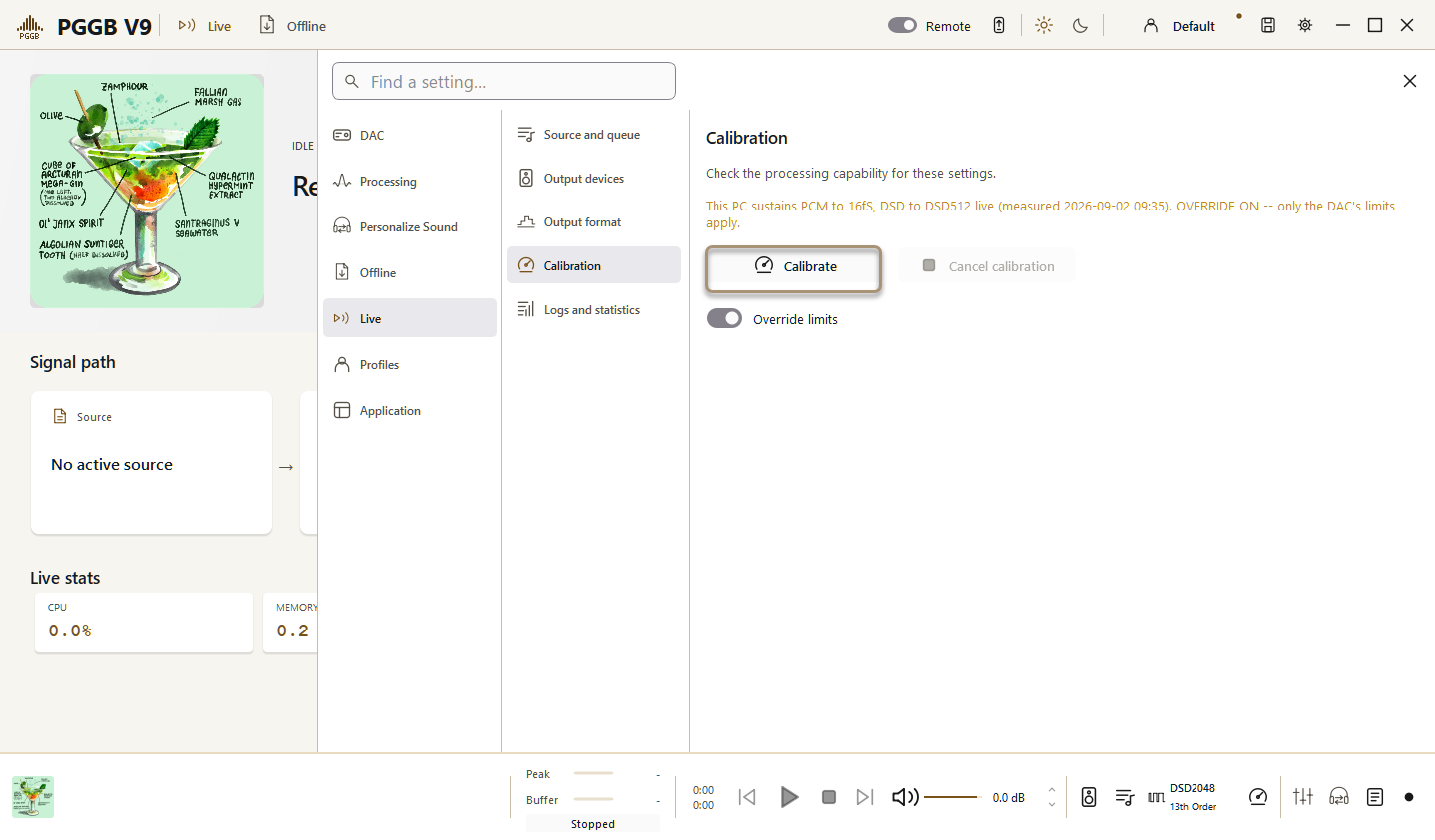
You can also measure your chosen settings directly:
- Calibrate measures the input rates that have not yet been measured for your current output settings. Once all rates have been measured, use Calibrate again to replace the results for these settings. The button reads Recalibrate once every rate for the current settings has been measured. Results for other output configurations stay saved. With DSD output, a new setting starts playing while PGGB measures it during the first minutes of playback. The same applies to PCM on the Precision Optimized Engine at 107, 128 or 256 Bit and 176.4 kHz or higher, with Dither Only off. On the first play of an unmeasured setting, the measured speed can take a few minutes to appear on the strip. If you stop before it appears, PGGB saves any result it already has. If there is no result yet, the next Play measures the setting again. Device Input still measures before playback. Other PCM settings start from an estimate when one is available; otherwise PGGB measures before the music starts. Use Calibrate for a measured result. An estimate is a starting point, not a measured result.
- Calibration checks PCM input rates from 44.1 to 384 kHz and DSD64. For DSD output, it measures each available modulator order at each input rate. This can take a while. Use Stop beside Calibrate under Settings → Live → Calibration to end calibration and keep completed measurements. The footer’s Calibration icon opens this page. The playback controls are disabled during calibration; use the Stop button beside Calibrate.
- Use Stop beside Calibrate to end calibration and keep completed measurements.
Allow about 10 minutes to calibrate a PCM limit or about an hour for a DSD limit. In Device Input, the player must be sending audio to PGGB Bridge; Calibrate stops PGGB playback before measuring. With Files or Network Renderer, stop PGGB playback first. No audio is sent to the DAC during calibration.
While a setting is being measured during playback, the status bar shows Playing — measuring this setting and the elapsed time. When the measurement finishes, PGGB saves the result and XRT shows it. On a fast computer, the result may remain an estimate, marked est.; use Calibrate for an exact measurement. If you stop early, nothing is saved and the next Play measures during playback again. If PGGB falls behind, nothing is saved and the next Play in this session measures before playback.
This applies when you press Play, double-click a track while stopped, or start playback from a control point. A rate change during playback uses an estimate; PGGB measures that setting the next time playback starts on it. Device Input continues to measure before playback.
With Override limits off, a modulator order is unavailable if its saved measurement is too slow at the most recently selected or played source rate. Override limits is on by default and lets you try settings below the measured processing limit. It does not override the DAC’s or driver’s capabilities.
With Override limits off, only DSD rates measured in real time on this computer are offered. A saved limit above these moves to the highest offered rate. If a higher rate is still selected when you press Play, PGGB uses the highest measured rate and records this in the log. Turn on Override limits to try a higher rate, or use Calibrate to measure it.
Override limits.
Override limits lets you try rates above the computer's measured processing limit. It does not add capabilities to your DAC or driver.
- Use it if you want to check whether calibration has been conservative.
- If playback drops out, stutters or stops, select a lower rate.
- Untick Override limits to return to the rates recommended by calibration.
Playback controls.
Move within a track.
For a seekable track, click the Track bar to jump, or drag the gold handle and release at the time shown in the bubble. Playback restarts after a short pause. Device Input and endless network streams cannot be seeked; endless streams show a moving live indicator and elapsed time.
Files show their title and duration in the Source list, with the current track highlighted. Hover for artist, album, format and file details. Network Renderer shows the current and queued next track when supplied by the control point. Device Input hides the list; returning to Files restores your queue.
Now Playing shows the title, artist and album. WavPack files are accepted in the Files queue, including PGGB’s widest offline output formats; Bypass plays them without processing. The PCM bit depth selected under Settings → DAC → Output settings also applies during live playback.
Auto-play.
Auto-play starts PGGB playback when an incoming stream is detected. Leave it enabled if you want to press Play in your source player and have PGGB start automatically.
Changing tracks or rates with Device Input
PGGB-Live processes music ahead of what you hear. With Device Input and Follow Roon off, it receives audio from your player but no track information, so it cannot tell when a new track starts at the same rate. It plays the music it has already processed before you hear the new track. PGGB detects a rate change and restarts at the new rate automatically. Depending on how your player switches rates, you may hear the music already processed first.
With Follow Roon enabled, PGGB receives Roon’s track information and follows playback changes. Audio is still buffered. How Follow Roon works ↗
Stopping only your player does not clear that music: PGGB pauses and keeps it, then resumes from there if the player starts again at the same rate.
To hear the new track sooner, press Stop in PGGB-Live to clear the processed music, then play the next track or change the rate in your player. Press Play in PGGB-Live if it has not started by itself. With Auto-play on, PGGB starts automatically once the player’s audio stops and starts again; if the player keeps sending audio after you press Stop in PGGB-Live, press Play in PGGB-Live to start again.
Changing settings while the music plays.
With Apply live changes enabled, changes in Settings apply to the current stream. Playback pauses briefly while PGGB applies the new settings, then resumes from the same position.
This is useful for comparing settings on a familiar passage. Change one setting at a time so you can hear its effect. Disable Apply live changes if you prefer changes to wait until you start new playback.
Fast start
Fast start is on by default. When it is off, PGGB waits for the first pieces of processed audio before starting. Playback then behaves the same as with Fast start on. Seeking, the next track and Play from a UPnP control point still start quickly.
On an Intel Mac, Live outputs PCM and Fast start is unavailable. DSD source files can play in Bypass or be converted to PCM. Offline DSD output is unaffected.
Open Settings → Live → Source and queue → Fast start. The playlist icon in Live’s bottom toolbar opens Source and queue directly. Remote also controls this setting.
Gapless.
Gapless play is available with UPnP output for Files and Network Renderer sources. It is off by default. Other source and output combinations do not offer it.
For a selected UPnP output, Gapless stream sends successive tracks as one continuous stream. Enable it for live albums, classical movements or other recordings that should play without a break between tracks.
If a renderer cannot play a gapless stream, PGGB retries once, then plays the tracks separately. A one-time message names the renderer and explains the change.
A continuous stream carries one set of track information and artwork. Disable Gapless stream if you want each track announced separately with its own title and cover.
Buffers.
Open Settings → Live → Workers and Memory to choose how much of the computer Live can use. Auto uses all processor cores. Fewer workers leave more capacity for other apps, but demanding settings may not keep up. Live memory limits the playback buffer while leaving a reserve for the system; a lower limit leaves more memory for other apps but less protection against interruptions. Changes take effect on the next Play. Use Calibrate after changing the worker count.
Net Buffer holds processed audio before sending it to a network endpoint. PAL starts with a 10-second network buffer. Device Input sent to a UPnP renderer initially banks about six seconds of audio, once per session.
A buffer holds a short amount of audio before it is played. This helps absorb brief interruptions in delivery. PGGB provides separate buffers for network output and incoming audio:
- Net Buffer: provides 10, 20 or 30 seconds of buffering for network playback. A longer buffer can improve stability but makes playback less responsive.
- Input Buffer: buffers audio received from another player through the PGGB Bridge.
If playback stutters, try increasing the relevant buffer. If the computer cannot sustain the processing rate, select a lower output rate; a larger buffer cannot compensate for a sustained processing shortfall.
Volume and clipping.
PGGB-Live provides volume control with clip protection. It keeps a margin below digital full scale: −1 dB for PCM and −3 dB for DSD. This margin helps prevent clipping, which occurs when a signal exceeds the available digital level.
- The clip indicator and counter show when clipping is detected.
- If the indicator lights, reduce the volume and check again.
- Set minimum and maximum volume limits to keep adjustments within your preferred listening range, including adjustments from PGGB-Remote.
Meters and the log.
Clear log empties the on-screen Live log on both the computer and Remote, even when Live logs is off. It leaves the Live diagnostic log file unchanged.
Live readouts appear in the footer. Open Settings → Live → Logs and statistics for logs and Log diagnostics. The output display uses the selected DAC’s short name and, for a local DAC, its audio backend.
Live logs controls the on-screen session log. It is on by default. Turn it off to stop new lines, including errors, from appearing; existing lines remain. Log diagnostics writes a separate file and is independent of this switch.
SL in Live stats is the segment length, in seconds of music, that the new engine is processing. It appears after the first segment starts. It is not playback latency or a buffer setting; the older engine does not show it. Trial time appears on its own line.
Each playback restart, including a seek or an applied settings change, creates a new diagnostic log. When contacting support about the current session, use the newest log in the PGGB folder.
The buffer meters show how much audio is ready to play, and the level meters show the audio level. The session log records playback activity and diagnostic messages.
To report a problem, enable Log diagnostics under Settings → Live → Logs and statistics, reproduce the issue and include the resulting log in your report.
EQ and PGGB-ARC.
ARC crossfeed works with PCM and DSD in Live. The Precision optimized engine is required for Live and is selected automatically. Room processing is available in Offline mode only.
- PGGB-EQ applies your equalization settings during live playback as well as offline remastering.
- PGGB-ARC crossfeed, including its head and torso settings, works during live playback. The Room effect requires offline processing, so its pane is grayed out while PGGB-Live is active.
We recommend using PGGB-Live to adjust crossfeed. Play a familiar track, enable Apply live changes and change one setting at a time. See the PGGB-ARC guide for a suggested starting setup.
PGGB-Remote.
Control PGGB Live playback and Offline processing from a phone, tablet or another computer on your home network. The Remote guide covers opening it, adding it to your home screen, playback, the queue and settings.
PGGB-Remote guide →What your license allows.
Streaming limits.
Every license tier includes PGGB-Live. The tier determines which precision and DSD rate settings you can use without a time limit. Offline remastering limits are unchanged from V8.
| Tier | Live streaming |
|---|---|
| Trial | 107-bit PCM without a time limit. Higher settings: 30 minutes of playback per application session. |
| Lite | 107-bit PCM without a time limit. Higher settings: 30 minutes of playback per application session. |
| Plus | PCM up to 128-bit precision and DSD up to DSD256 without a time limit. Higher settings: 30 minutes per application session. |
| Pro | All PCM precisions and DSD up to DSD256 without a time limit. Higher DSD rates: 30 minutes per application session. |
| Max | All supported PCM precisions and DSD rates without a time limit. |
The 30-minute allowance applies only to playback above your tier's unlimited range and counts playing time, so pausing does not use it. When the allowance is exhausted, PGGB displays a message and stops playback. Restarting the application begins a new session with another 30 minutes. Every tier, including free Trial and Lite, can stream 107-bit PCM without a time limit. Lite has the same streaming limits as Trial. These limits do not affect offline processing.
The full comparison is on the product page: Compare licenses.
The second Live license.
Pro and Max each include an additional Live license at the same tier, at no extra cost. This license is for live playback on a second computer, such as the computer connected to your listening system. It does not include offline processing.
The Live license is added to your account with your main license and is not sold separately. Install PGGB on the second computer, open Settings → Application → License and About → Register, enter the same email and activation code, and select the Live license. The offline Start button remains disabled; live features follow the limits of the corresponding Pro or Max tier.
Requirements and setup.
What you need.
- A compatible 64-bit Windows 10/11 PC or Mac that runs PGGB.
- Enough processing performance for your chosen output settings. A computer that remasters at comfortably faster than real time is a good candidate for live playback.
- A DAC or network renderer that supports your chosen output format and rate. Higher DSD rates place greater demands on the processor.
Use calibration to establish the rates your computer can sustain. Offline conversion performance is a useful guide, but the live measurement determines the offered rates.
Installing the Bridge.
Install the Bridge if you want to receive audio from another player on the same computer. Direct file playback and UPnP input do not require it.
- Windows: leave the PGGB-Live ASIO bridge component selected in the installer. It is selected by default.
- Mac: the .pkg installer includes the PGGB Bridge driver and the PGGB Remote web app.
Troubleshooting.
Common problems and what to do.
PGGB says it could not keep up
If the session measures processing below real time and then stops, PGGB reports the measured speed. For DSD, try a lower modulator order or DSD rate. This message identifies a processing limit; it is different from a DAC that has stopped accepting audio.
If a DSD rate is not offered, turn on Override limits to try it or use Calibrate to measure it. With Override limits off, the rate becomes available once calibration confirms that this computer can process it in real time.
A Mac player is holding the PGGB Bridge
Start with the checks below. The session log and buffer meters can help you identify where playback is being interrupted.
- No audio through the Bridge. Check that PGGB is set to Device Input and that the source player is sending audio to the PGGB Bridge. On Mac, also check that PGGB has audio-input permission.
- PGGB-Live does not appear in the control app. Select Network Renderer in PGGB, wait a few seconds and refresh the app. Check that both devices are on the same local network. Guest networks or device isolation may block UPnP discovery.
- The DAC is missing from Endpoint. Connect it, switch it on and press Rescan. Devices added after startup require a rescan.
- A network output renderer is missing. Press Rescan and check the ‘Network: searched’ entry in the session log. If it lists only a VPN or virtual adapter, try disconnecting the VPN and scanning again.
- The desired rate is missing. Check the device-capability and calibration lines below Endpoint. If the computer's measured performance is the limit, you can try Override limits. This does not bypass the DAC's supported rates.
- Playback stutters. Increase the relevant Net Buffer or Input Buffer for brief delivery interruptions. If processing cannot keep up, lower the output rate.
- The renderer plays noise with DSD. Stop playback and check the renderer's DSD settings. A DoP stream must use bitstream or pass-through DSD handling; interpreting it as ordinary PCM produces noise.
- Playback stops after 30 minutes. Check whether PGGB reports a license limit. If so, select settings within your tier's unlimited range or restart the application for a new 30-minute session.
- The remote page will not open. Check that PGGB Remote is enabled, use the address from Links and connect the phone to the same network. Look for a message indicating that port 8180 is in use.
- The PGGB-ARC Room pane is grayed out. Room is available only for offline processing. Crossfeed remains available during live playback. See EQ and PGGB-ARC.
If the problem continues, enable Log diagnostics, reproduce it and send the log with a description of your setup to zb.pggb@gmail.com.
Frequently asked questions.
Do I need to buy anything extra to use PGGB-Live?
No. All tiers include live playback, including Trial and Lite. The tier determines which settings have no time limit. See Streaming limits.
Does PGGB-Live change my offline remastering?
No. Offline remastering and its license limits are unchanged from V8. Choose Offline in the header when you want to create remastered files.
Can I keep using the player I already have?
Yes. Use the PGGB Bridge for a compatible player on the same computer, or UPnP for network playback. The player compatibility table explains which route to use.
Does it work with Roon?
Yes, through the Bridge. Run Roon, or a Roon Bridge endpoint, on the PGGB computer and choose the PGGB Bridge as that zone's output. On Windows it is called PGGB-Live input bridge. Roon does not send audio to UPnP renderers.
Why did the music stop after half an hour?
If PGGB displays a license-limit message, you have used the 30-minute allowance for settings above your tier's unlimited range. Choose settings within that range or restart the application for another session.
Why can I not choose the rate I want?
The selected device may not support it, or calibration may have found it too demanding for your computer. Check the selected output device’s capabilities and your calibration results. Use Override limits only to test the computer's processing limit.
Native or DoP?
Use Native when your DAC and driver support it. Otherwise use DoP, which transports DSD inside a PCM stream without converting the audio to PCM. DoP requires more bandwidth and may offer a lower maximum DSD rate.
Why is the PGGB-ARC Room tab grayed out?
ARC's Room effect is available only during offline processing. Set Mode to Offline to use it when remastering files. Crossfeed works in live PCM and DSD modes.
Do I have to install anything on my phone?
No. Open the address shown by PGGB's Links button in a browser on a device connected to the same network.
Who can access PGGB-Remote?
The remote page is available on your local network. This release has no pairing code, so anyone on that network who knows the address can control playback. Use it on a network you trust.
So long and thanks for all the fish
.·´¯·.´¯·.¸.ZB.´¯·.¸¸.·´¯·.¸><(((º>